
Help Sessions#
Guidelines for attending help sessions:#
Do not come to a help session without first attempting the assignment on your own.
Arrive prepared and organized, knowing what you need to ask. Be ready to share any work you have already completed on the assignment.
Remember that help session staff are there to help you find answers on your own, not to provide answers for you.
Be professional, polite, and courteous at all times. If you do not understand a particular explanation, ask politely to have it repeated.
Question Queue#
Use the form linked in Fig. 1 to submit questions to the question queue during help sessions. Questions will be answered in the order they are received. If you have another question after being helped, please submit another form.
Schedule#
Many help sessions are available throughout the week. Please see below for the times and locations.
Notes
You are free to attend any of the office hours provided, even if the professor leading the office hours does not teach your section of ENGR 133.
Refer to the course schedule for the holidays in this course, during which, help sessions won’t be hosted.
In-Person Indianapolis Campus#
Day |
Time |
Location |
Instructor |
GTAs |
|---|---|---|---|---|
Tue |
7:00 PM – 9:00 PM |
Lux: Main Lobby |
Prathamesh |
|
Wed |
11:00 AM – 12:00 PM |
ET 215 B |
Prof. Banik |
|
Wed |
3:30 PM – 5:30 PM |
ET 215 B |
Prof. Hillan |
|
Thu |
7:00 PM – 9:00 PM |
North Hall Room 1105 |
Shivan |
|
Fri |
11:00 AM – 12:00 PM |
ET 215 B |
Prof. Banik |
Resident Assistant Contact Information
Lux: 765-806-0044
North Hall: 765-806-0050
Virtual - Zoom#
Attending Virtual Help Sessions:#
You can join our Zoom room during the scheduled times to get live one-on-one help from a member of the teaching team. If you are early, please wait till the meeting is started by a staff member. See Table 5 for the full schedule.
Attention
Joining requires using your Purdue provided Zoom account.
How to log in to Zoom using your Purdue Zoom account:#
Open Zoom and select SSO (single sign-on) from the login screen. You may need to log out of your personal Zoom account before you can log in using your Purdue account.
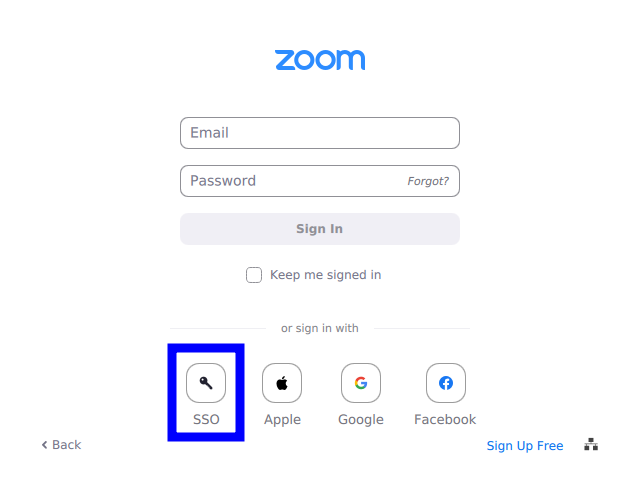
Fig. 2 Select SSO from the Zoom login screen.#
Enter
purdue-eduas the company domain and click Continue. Note the hyphen-, betweenpurdueandedu.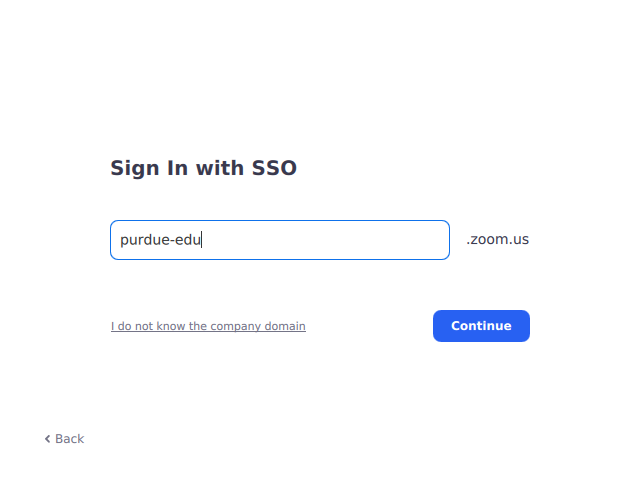
Fig. 3 Enter
purdue-eduas the company domain.#Log in with your Purdue credentials, and then you can use the link above to join the help session.

Fig. 4 Log in with your Purdue credentials.#
Additional Resources#
This course is supported by the Academic Success Center (ASC) Peer-Led Tutoring Program. You can schedule sessions through BoilerConnect. Sessions must be scheduled 24 hours in advance. This free service is a great way to practice the material, reinforce challenging material, and review key concepts. Learn more & schedule a session here: https://www.purdue.edu/asc/indianapolis/tutoring.html.
The ASC provides non-content specific support through Study Skill Consultations & Peer Success Coaching. Learn more at https://www.purdue.edu/asc/indianapolis!