
Apr 28, 2026 | 1029 words | 10 min read
15.3.2. Task 2#
Learning Objectives#
Use Python file I/O and modern libraries to load and handle image data.
Develop an understanding of Python libraries for image processing.
Apply mathematical methods to image data to perform image-based operations.
Navigate and manipulate image data programmatically by iterating over pixels, regions, or image arrays.
Introduction#
Object and feature detection are core problems in computer vision (CV) and are used in many real-world applications. For example, self-driving cars rely on detecting traffic signs to understand their surroundings, improve cruise control, and plan safe routes. In materials engineering, computer vision techniques are used to identify features such as phases and grain boundaries in metal alloys to better understand their performance. Feature detection is also important in medical imaging, such as Magnetic Resonance Imaging (MRI), where it can help identify details that are difficult for the human eye to see. In recent years, advances in neural networks have greatly improved the speed and accuracy of object detection, in some cases outperforming humans on tasks like recognizing handwritten numbers.
Template matching is a widely used computer vision method for object detection. It works by searching an image for regions that closely match a predefined template, and its simplicity makes it one of the most accessible techniques to understand and implement.
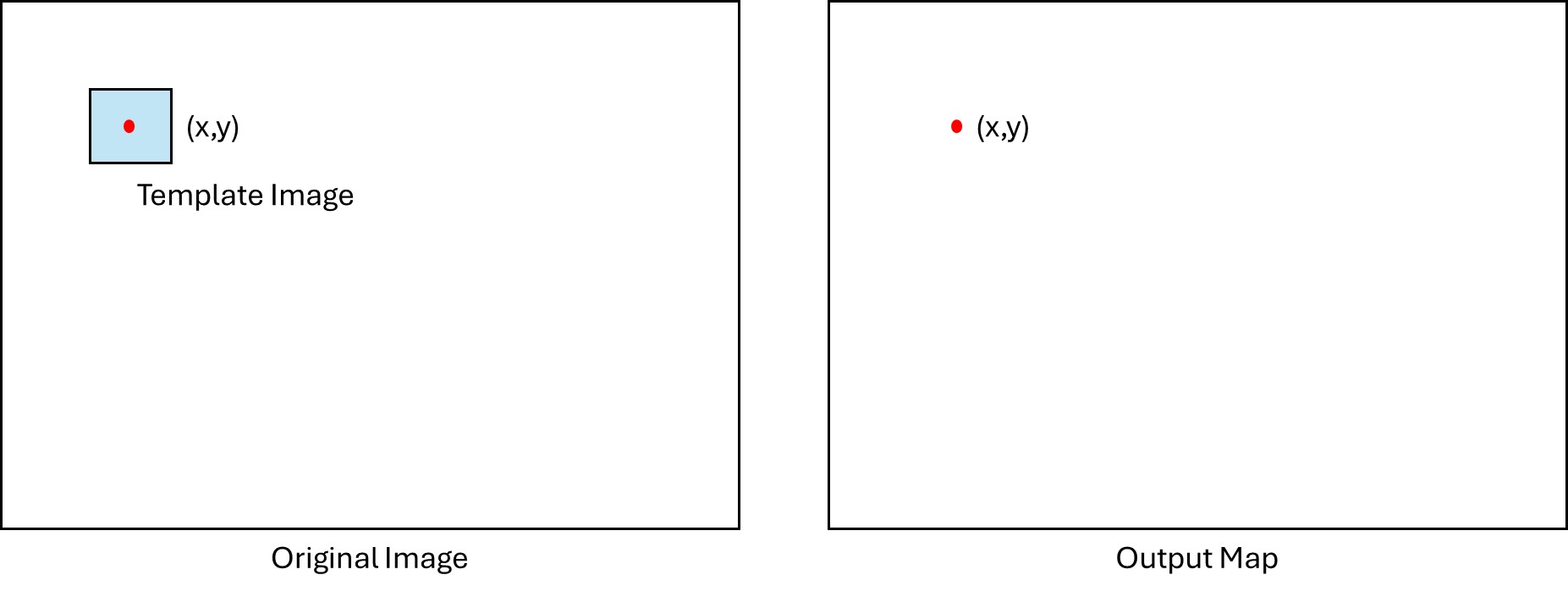
Fig. 15.17 Illustration of template matching#
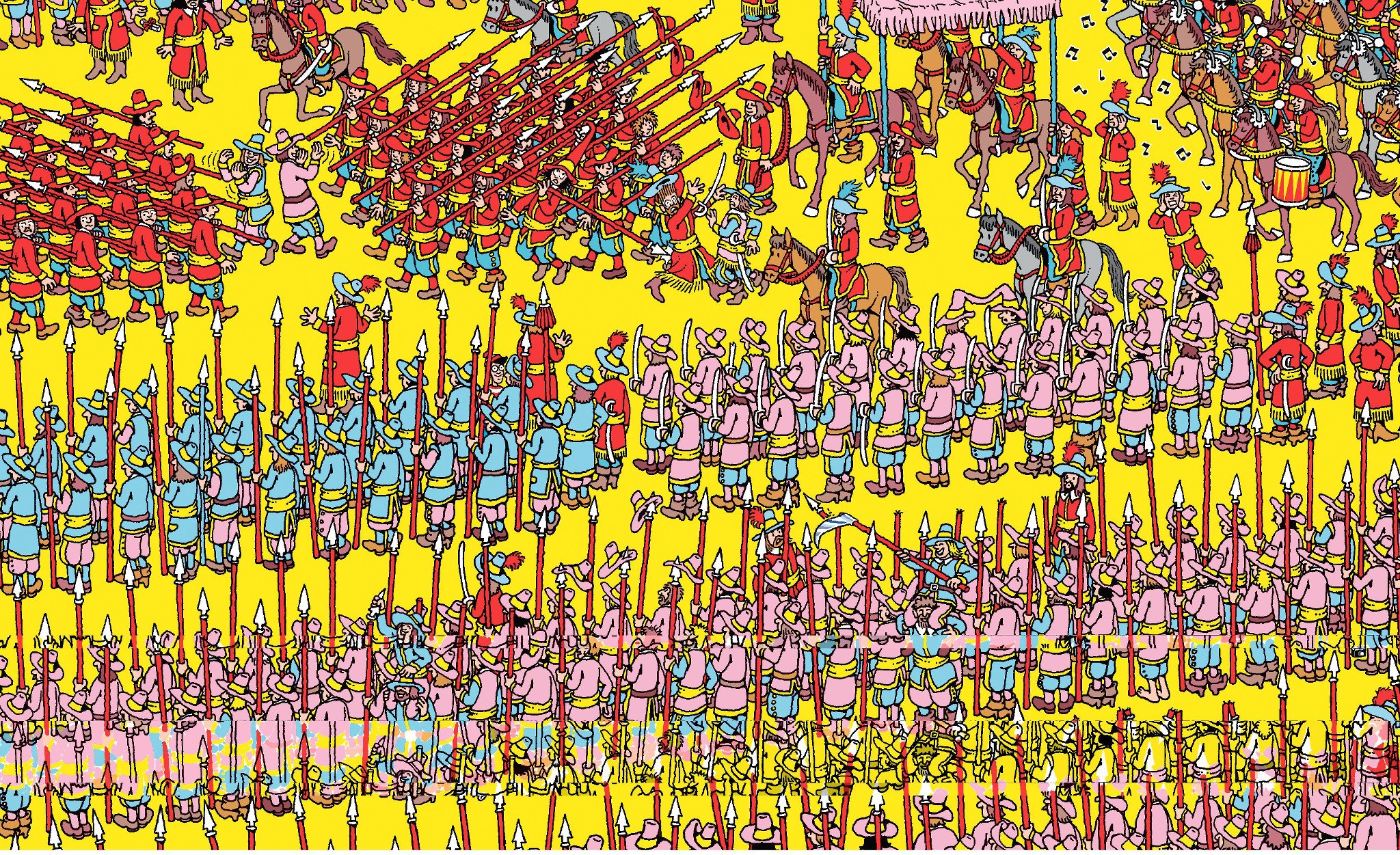
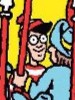
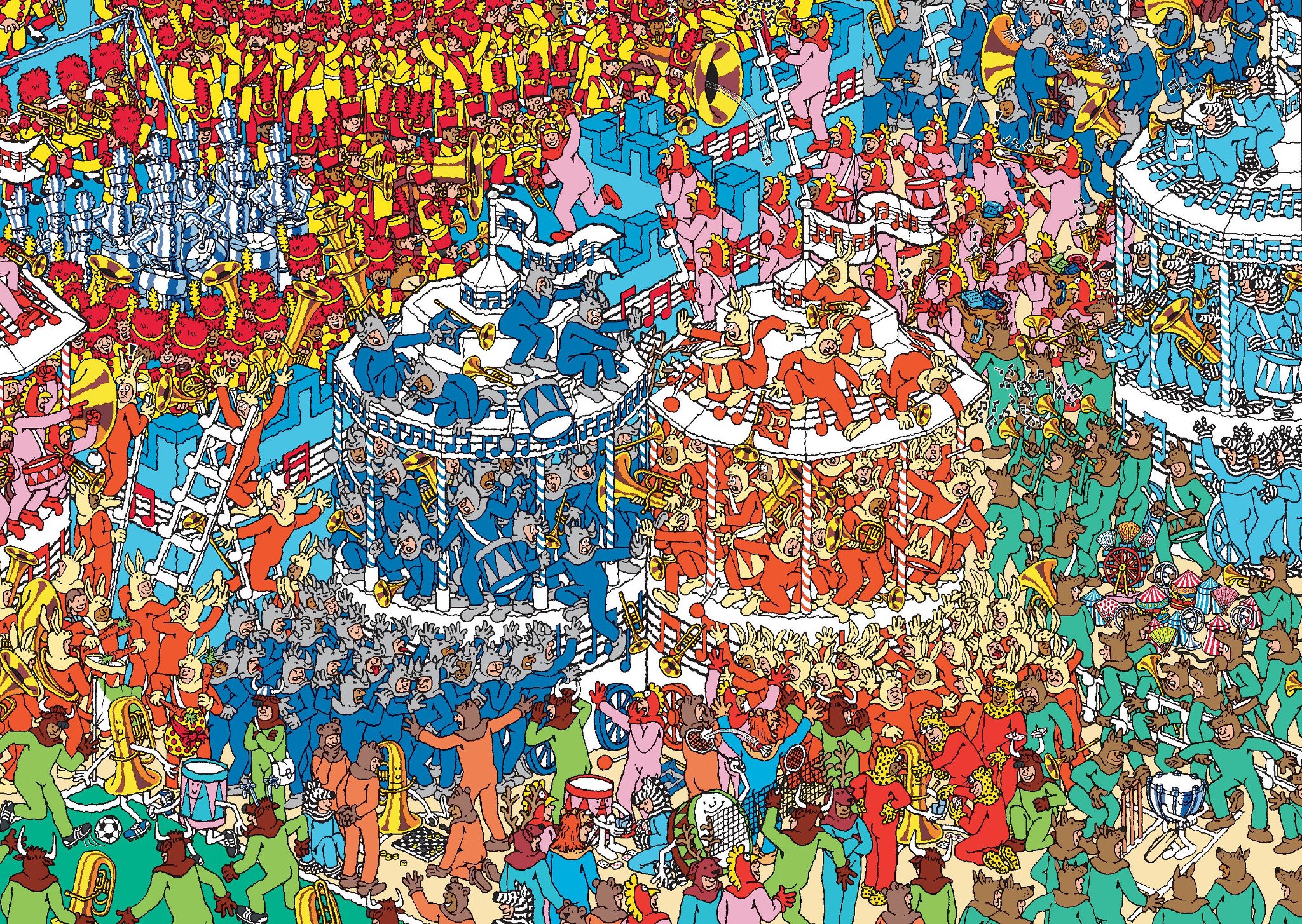
During the matching process, your code will slide the template across the source image one pixel at a time. At each position, it will calculate a numerical score that shows how closely the template matches that part of the image. These scores are combined to create an output map, which can then be used to determine the most likely location of the object. For this task, you will apply template matching to locate Waldo, the famously hidden character, within several busy, visually complex scenes.
Task Instructions#
Design a program that loads in a scene image and template image, converts them to grayscale, and then uses the SSD method (described below) to find the location of the template image within the scene image. The program should then display the original scene image with a red rectangle around the location of the template image, and print the x and y coordinates of the template image within the scene image.
The program should be modular, with separate functions for loading images, converting to grayscale, calculating the SSD output map, and drawing the rectangle on the original image. These functions are described in detail below. The main function should orchestrate these steps by collecting user input, calling each function in sequence, and printing the final output to the user.
Develop a flowchart of your design and save it as
py5_ind_2_username.pdf. Then start
writing your program from a copy of the
ENGR133_Python_Template.py
Python template. Name this program
py5_ind_2_username.py.
Note
For this assignment, please revisit Section 15.1.1 and read the
documentation thoroughly. You will need to use the PIL, numpy, and
matplotlib.pyplot libraries to load images, manipulate image arrays, and
display images, respectively.
Scene Number |
Scene Image |
Template Image |
|---|---|---|
Scene 1 |
||
Scene 2 |
||
Scene 3 |

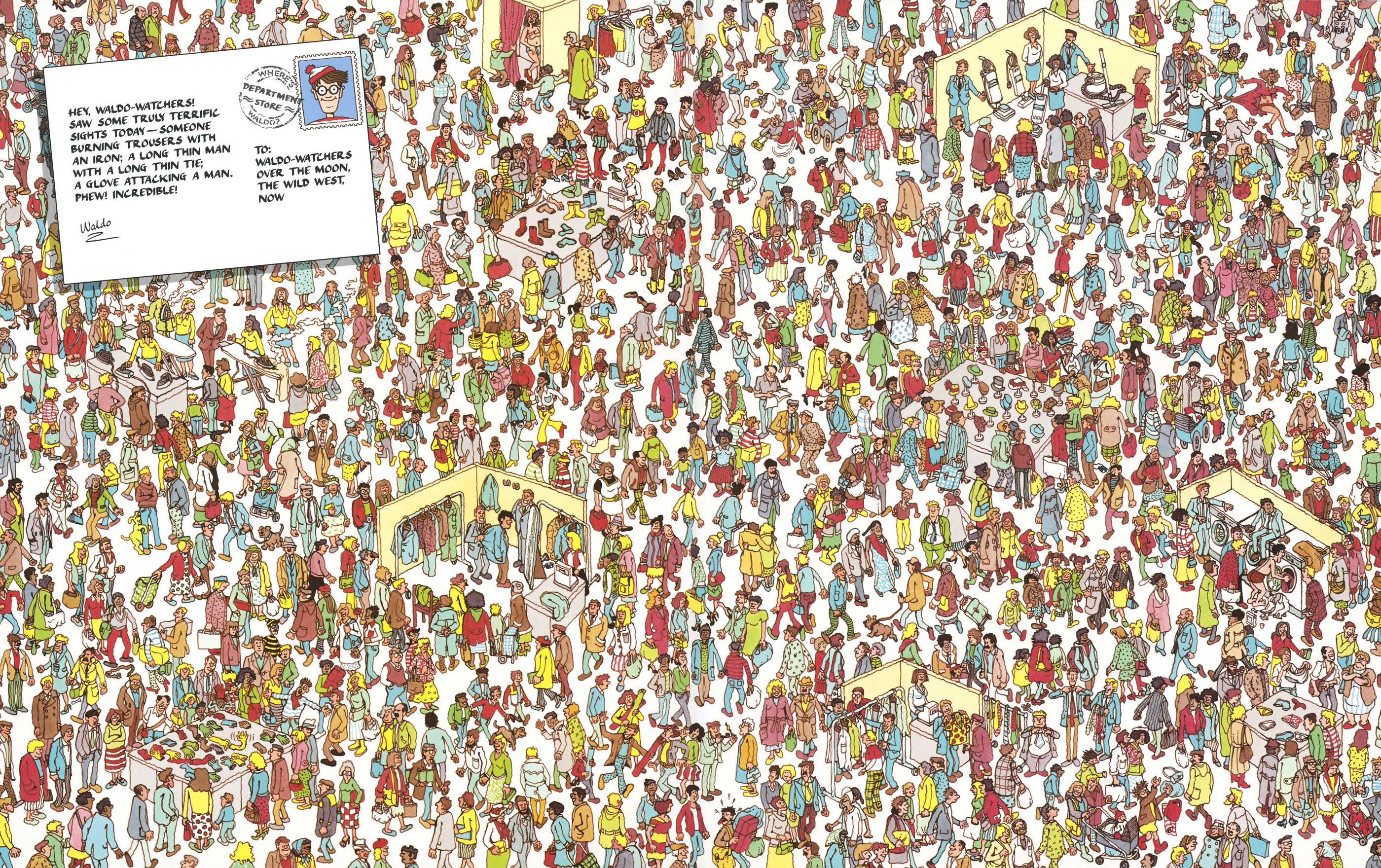
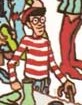
Step 1: Load images using load_img and rgb_to_grayscale functions#
Create a function to load the image of Waldo (template image) and the scene image
(source image). Use PIL.Image.open to load each image and convert it to a
NumPy array. See the official
docs for usage
details. Prepare the image for analysis by removing additional channels, normalizing
the pixel values, and linearizing the pixels in the image. Use the function
load_img created in Team Task 2.
Convert the image to grayscale using the function rgb_to_grayscale created in
Team Task 2.
Step 2: SSD Function#
Next, we are going to create a function that uses the Sum of Squared Differences (SSD)
method to determine the location of the template image within the scene image. Call
this function ssd, which takes the grayscale scene image as the first
input and the grayscale template image as the second input, and returns a single
array, an output map of R values.
The \(R\) value represents the similarity between the template and the scene image at each location – a smaller value indicates a closer match. The equation is:
Where
\(I\) is a matrix representing the scene image;
\(T\) is a matrix representing the template image;
\(i,j\) are the indexing of the output map;
\(k,l\) are the indexing of the template;
\(w,h\) are the width and height of the template image, in pixels.
The output \(R\) is a matrix of these scores across the scene image. At each position \((i,j)\), the region of \(I\) compared against the template is the same size as the template.
Begin by initializing a blank output map to store the \(R\) values.
Note
This task does not require edge case handling; do not process positions where the template would extend beyond the boundary of the scene image.
Step 3: Draw Rectangle Function#
Finally, create a function that displays the original scene image with a rectangle
around the best-matching template location. Name this function
draw_rectangle, taking the original scene image (NumPy array), the
original template image (NumPy array), and the \(R\) output map from
ssd as its three inputs. The function returns the x and y
location of the template within the scene image.
To do this, get the width and height of the template, and then find the x and
y location of the minimum \(R\) value in the output map.
Use matplotlib.pyplot to display the image, then overlay a rectangle using
matplotlib.pyplot.gca().add_patch(Rectangle((x,y), width=w, height=h, edgecolor='red', facecolor='none', lw=2)), where x,y is the template
location, w and h are the template dimensions,
edgecolor='red' sets the border color, facecolor='none' keeps the
interior transparent so the image remains visible, and lw controls the line
width.
Step 4: Main Function#
Your main function will:
Prompt the user for the file paths of the scene and template images.
Load both as
numpyarrays then convert them to grayscale arrays.Call
ssdwith the grayscale images to obtain the \(R\) output map.Call
draw_rectanglewith the color scene image, color template image, and output map to display the image and retrieve thexandycoordinates.Print these coordinates to the user.
Sample Output#
Use the values in Table 15.15 below to test your program.
Case |
Scene Image Input |
Template Image Input |
|---|---|---|
1 |
scene_1.jpg |
template_1.jpg |
2 |
scene_2.jpg |
template_2.jpg |
3 |
scene_3.jpg |
template_3.jpg |
Ensure your program’s output matches the provided samples exactly. This includes all characters, white space, and punctuation. In the samples, user input is highlighted like this for clarity, but your program should not highlight user input in this way.
Case 1 Sample Output
$ python3 py5_ind_2_username.py Enter the path of the scene image you want to load: scene_1.jpg Enter the path of the template image you want to load: template_1.jpg The template is located at (690, 499)
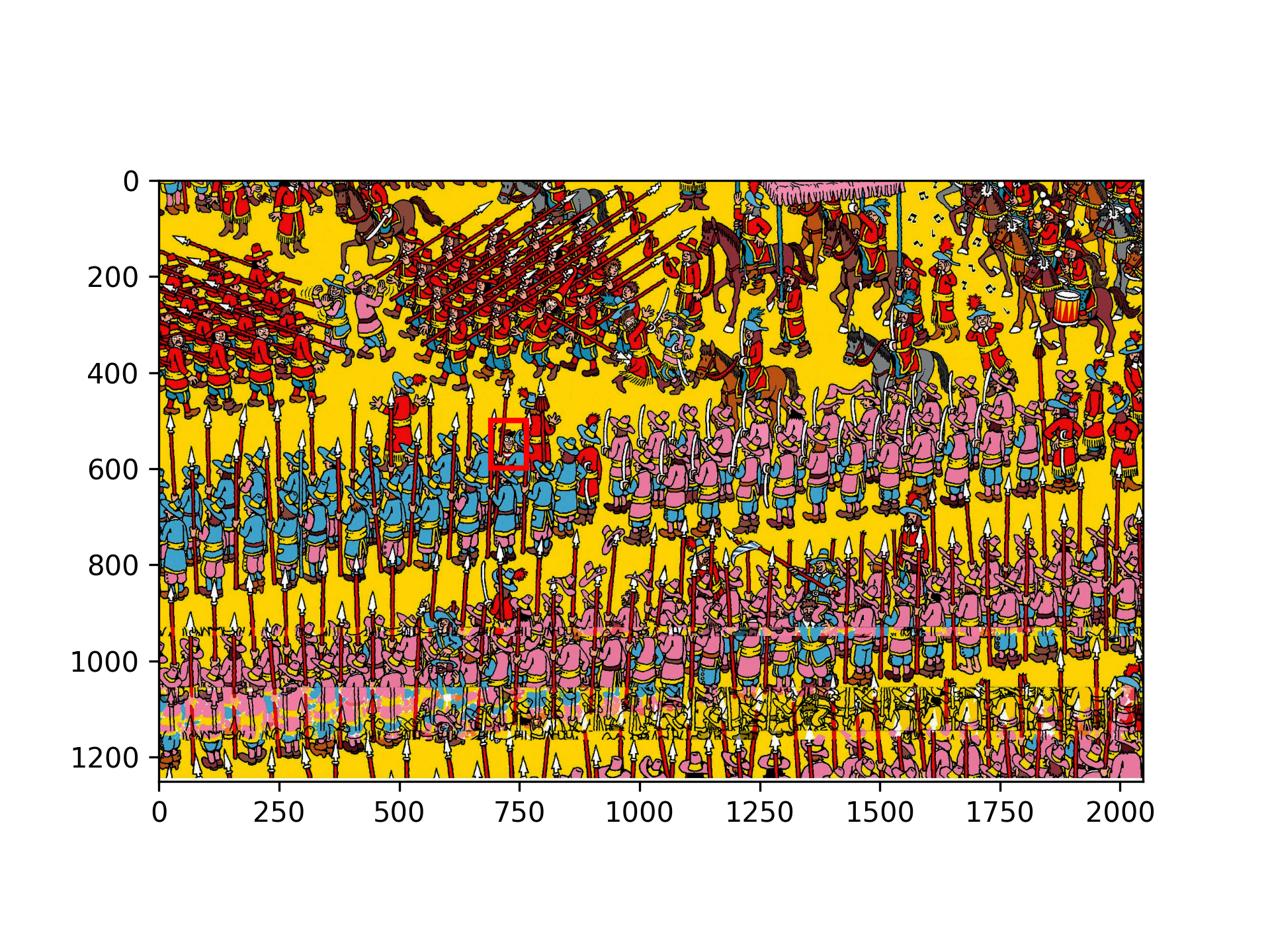
Fig. 15.18 Case_1_output.png#
Case 2 Sample Output
$ python3 py5_ind_2_username.py Enter the path of the scene image you want to load: scene_2.jpg Enter the path of the template image you want to load: template_2.jpg The template is located at (1713, 401)
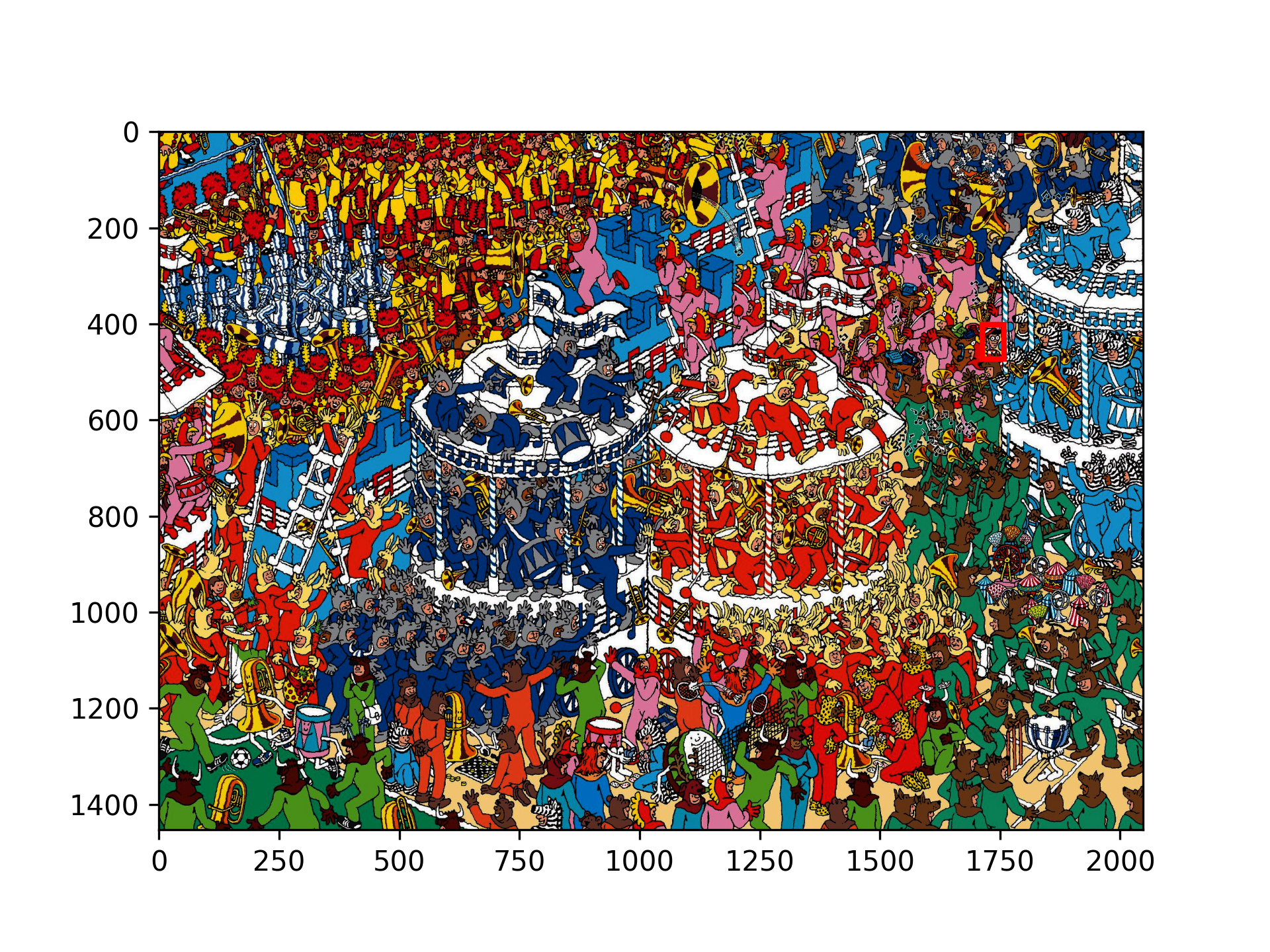
Fig. 15.19 Case_2_output.png#
Case 3 Sample Output
$ python3 py5_ind_2_username.py Enter the path of the scene image you want to load: scene_3.jpg Enter the path of the template image you want to load: template_3.jpg The template is located at (1144, 285)
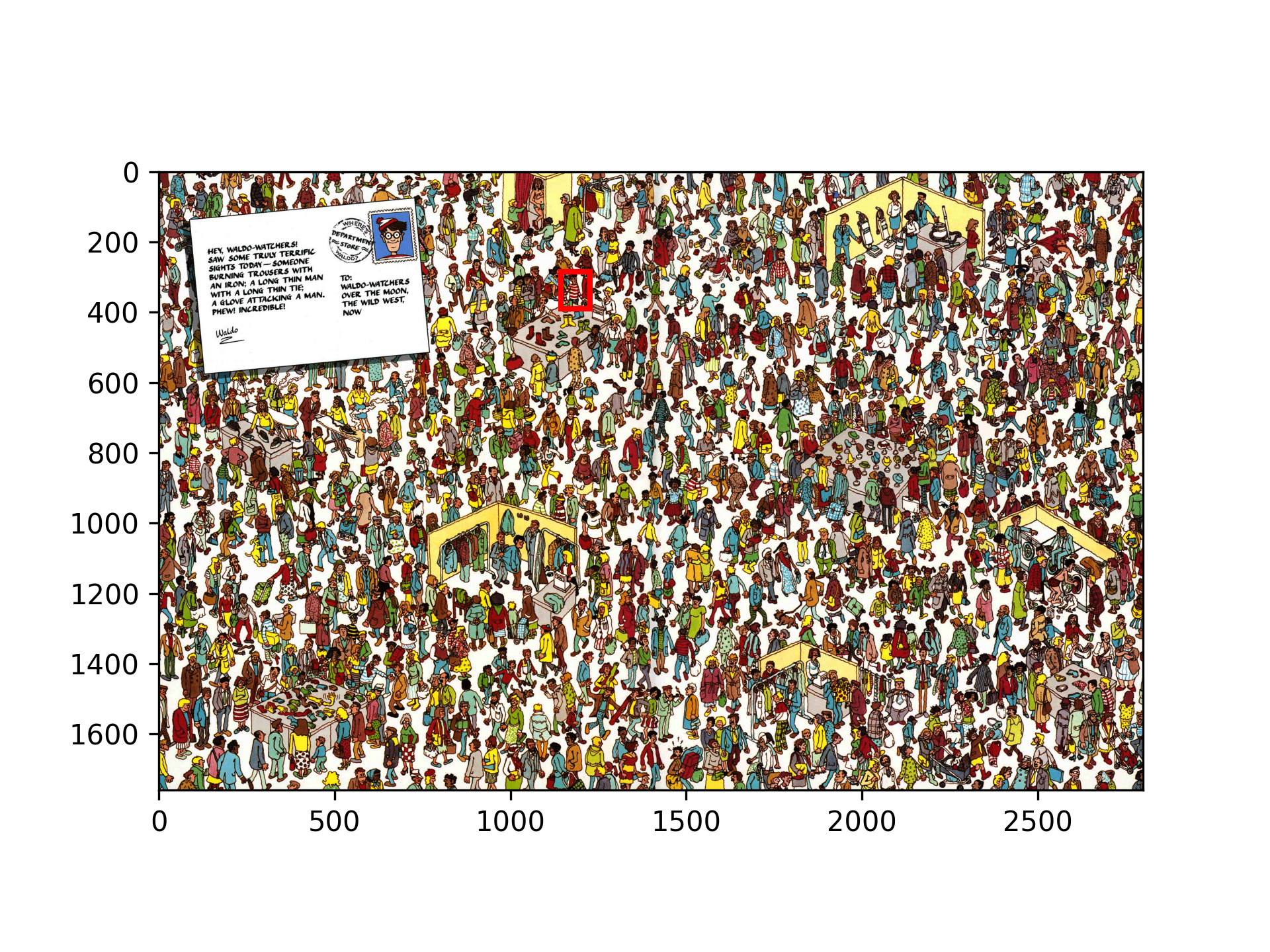
Fig. 15.20 Case_3_output.png#
Deliverables |
Description |
|---|---|
py5_ind_2_username.pdf |
Flowchart(s) for this task. |
py5_ind_2_username.py |
Your completed Python code. |