\[ \begin{align}\begin{aligned}\newcommand\blank{~\underline{\hspace{1.2cm}}~}\\% Bold symbols (vectors) \newcommand\bs[1]{\mathbf{#1}}\\% Differential \newcommand\dd[2][]{\mathrm{d}^{#1}{#2}} % use as \dd, \dd{x}, or \dd[2]{x}\\% Poor man's siunitx \newcommand\unit[1]{\mathrm{#1}} \newcommand\num[1]{#1} \newcommand\qty[2]{#1~\unit{#2}}\\\newcommand\per{/} \newcommand\squared{{}^2} \newcommand\cubed{{}^3} % % Scale \newcommand\milli{\unit{m}} \newcommand\centi{\unit{c}} \newcommand\kilo{\unit{k}} \newcommand\mega{\unit{M}} % % Percent \newcommand\percent{\unit{{\kern-4mu}\%}} % % Angle \newcommand\radian{\unit{rad}} \newcommand\degree{\unit{{\kern-4mu}^\circ}} % % Time \newcommand\second{\unit{s}} \newcommand\s{\second} \newcommand\minute{\unit{min}} \newcommand\hour{\unit{h}} % % Distance \newcommand\meter{\unit{m}} \newcommand\m{\meter} \newcommand\inch{\unit{in}} \newcommand\foot{\unit{ft}} % % Force \newcommand\newton{\unit{N}} \newcommand\kip{\unit{kip}} % kilopound in "freedom" units - edit made by Sri % % Mass \newcommand\gram{\unit{g}} \newcommand\g{\gram} \newcommand\kilogram{\unit{kg}} \newcommand\kg{\kilogram} \newcommand\grain{\unit{grain}} \newcommand\ounce{\unit{oz}} \newcommand\pound{\unit{lbs}} % % Temperature \newcommand\kelvin{\unit{K}} \newcommand\K{\kelvin} \newcommand\celsius{\unit{{\kern-4mu}^\circ C}} \newcommand\C{\celsius} \newcommand\fahrenheit{\unit{{\kern-4mu}^\circ F}} \newcommand\F{\fahrenheit} % % Area \newcommand\sqft{\unit{sq\,\foot}} % square foot % % Volume \newcommand\liter{\unit{L}} \newcommand\gallon{\unit{gal}} % % Frequency \newcommand\hertz{\unit{Hz}} \newcommand\rpm{\unit{rpm}} % % Voltage \newcommand\volt{\unit{V}} \newcommand\V{\volt} \newcommand\millivolt{\milli\volt} \newcommand\mV{\milli\volt} \newcommand\kilovolt{\kilo\volt} \newcommand\kV{\kilo\volt} % % Current \newcommand\ampere{\unit{A}} \newcommand\A{\ampere} \newcommand\milliampereA{\milli\ampere} \newcommand\mA{\milli\ampere} \newcommand\kiloampereA{\kilo\ampere} \newcommand\kA{\kilo\ampere} % % Resistance \newcommand\ohm{\Omega} \newcommand\milliohm{\milli\ohm} \newcommand\kiloohm{\kilo\ohm} % correct SI spelling \newcommand\kilohm{\kilo\ohm} % "American" spelling used in siunitx \newcommand\megaohm{\mega\ohm} % correct SI spelling \newcommand\megohm{\mega\ohm} % "American" spelling used in siunitx % % Capacitance \newcommand\farad{\unit{F}} \newcommand\F{\farad} \newcommand\microfarad{\micro\farad} \newcommand\muF{\micro\farad} % % Inductance \newcommand\henry{\unit{H}} \newcommand\H{\henry} \newcommand\millihenry{\milli\henry} \newcommand\mH{\milli\henry} % % Power \newcommand\watt{\unit{W}} \newcommand\W{\watt} \newcommand\milliwatt{\milli\watt} \newcommand\mW{\milli\watt} \newcommand\kilowatt{\kilo\watt} \newcommand\kW{\kilo\watt} % % Energy \newcommand\joule{\unit{J}} \newcommand\J{\joule} % % Composite units % % Torque \newcommand\ozin{\unit{\ounce}\,\unit{in}} \newcommand\newtonmeter{\unit{\newton\,\meter}} % % Pressure \newcommand\psf{\unit{psf}} % pounds per square foot \newcommand\pcf{\unit{pcf}} % pounds per cubic foot \newcommand\pascal{\unit{Pa}} \newcommand\Pa{\pascal} \newcommand\ksi{\unit{ksi}} % kilopound per square inch \newcommand\bar{\unit{bar}} \end{aligned}\end{align} \]

Apr 28, 2026 | 469 words | 5 min read

18.3.1. Task 1#

Learning Objectives#

Read and display images in MATLAB; Utilize image processing to modify data

Introduction#

Image rotation has become a commonly used feature in many smartphone image apps. In this task, you will implement image rotation based on user input in MATLAB.

Task Instructions#

  1. Draft a flowchart for this task and save it as ma3_ind_1_username.pdf.

  2. Open the ENGR133_MATLAB_Template.m MATLAB template and complete the header information. Save your script as ma3_ind_1_username.m.

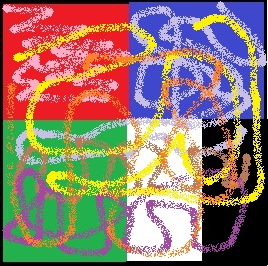
  3. Create a MATLAB program that reads block.png image file and outputs the image to the screen as Figure 1 using the imshow command. Properly label this image as “Color Original Image”.

  4. imread returns an array of row X column X frames. The number of frames for a colored image is generally ‘3’ (RGB) or ‘5’. Convert the image into a grayscale image using the built-in MATLAB function rgb2gray. Output the image to the screen as Figure 2 and label it as “Grayscale Original Image”.

  5. Use menu function to ask the user to choose either the colored original image or grayscale image.
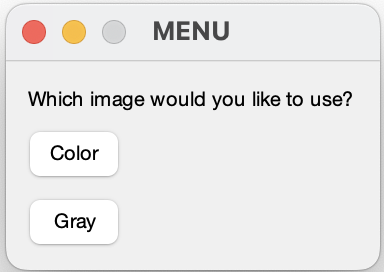
    MATLAB menu dialog asking user to choose Color or Gray image.

    Fig. 18.1 Example user option for colors using menu function#

  6. Use menu function again to ask the user to select a flipping direction for the image they have chosen above.
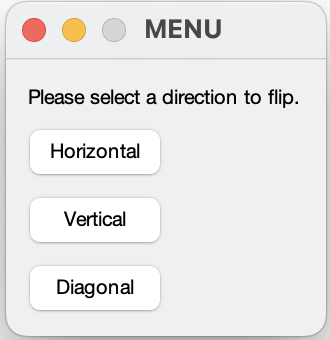
    MATLAB menu dialog asking user to choose Horizontal, Vertical, or Diagonal flip.

    Fig. 18.2 Example user option for flipping a direction using menu function#

  7. Open the ENGR133_MATLAB_UDF_Template.m MATLAB template and write the following user-defined functions:

    1. ma3_ind_1_vertical_username.m, which flips the image vertically (i.e. over a horizontal line that runs through the center of the image). Use only nested for loops to rotate the image.

    2. ma3_ind_1_horizontal_username.m, which flips the image horizontally (i.e. over a vertical line that runs through the center of the image). Use only nested for loops to rotate the image.

    3. ma3_ind_1_diagonal_username.m, flips the image over a diagonal line that runs from the top left to the bottom right of the image. Use either nested loops or transpose/permute to rotate the image. permute can be used to rearrange the dimensions of a multidimensional array.

      Hint

      For more information on using permute, see the official documentation.

    4. Publish each of your UDF scripts as ma3_ind_1_vertical_pub_username.pdf, ma3_ind_1_horizontal_pub_username.pdf, and ma3_ind_1_diagonal_pub_username.pdf.

      Note

      MATLAB will produce an error if you try to publish a script that requires user input.

      Thus, we need to update our publishing option accordingly:

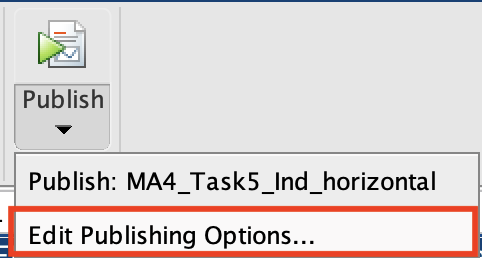
      1. Click on the down arrow button and select Edit Publishing Option.

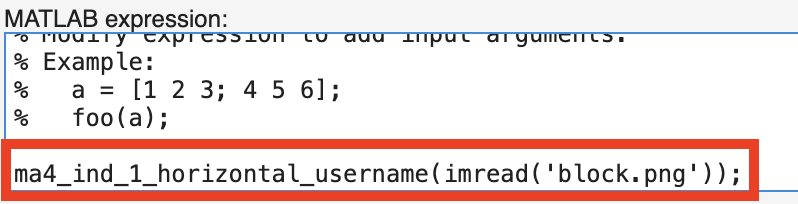
      2. Under MATLAB expression, write down the appropriate input.

        MATLAB Publish menu showing Edit Publishing Options selection.

        Fig. 18.3 Overview of Edit Publishing Option in MATLAB#

        MATLAB expression field showing function call with imread input argument.

        Fig. 18.4 Overview of MATLAB expression in MATLAB#

  8. Output the rotated image to the screen as Figure 3 and label the output Image Flipped XX where XX indicates the selection by the user (vertical, horizontal, or diagonal).

  9. Publish ma3_ind_1_username.m as a PDF using one of the test cases and name it ma3_ind_1_username.pdf.

  10. Submit all of your deliverables to Gradescope.
Example Outputs:
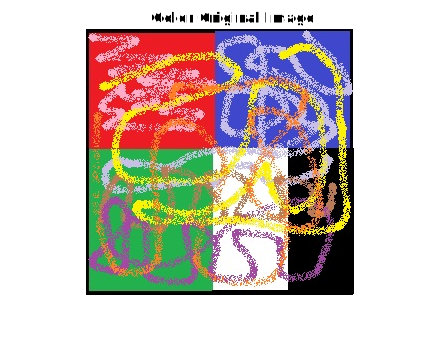
Test image: four colored blocks (red, blue, green, black) with swirling patterns.

Fig. 18.5 The original downloadable image.#
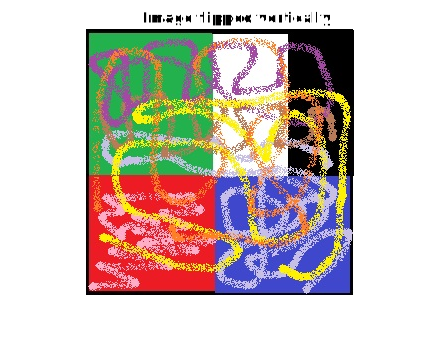
The same abstract test image flipped vertically (top and bottom swapped).

Fig. 18.6 The image flipped vertically.#
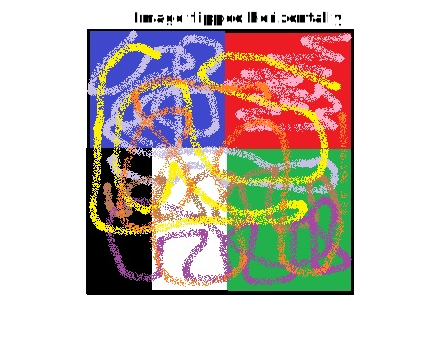
The same abstract test image flipped horizontally (left and right swapped).

Fig. 18.7 The image flipped horizontally.#
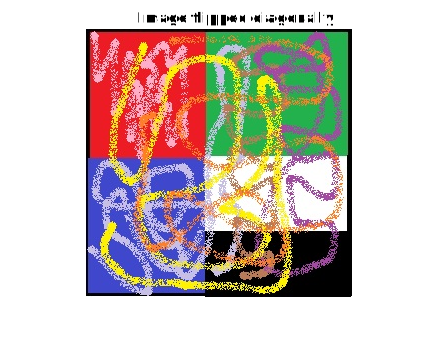
The same abstract test image flipped diagonally (axes transposed).

Fig. 18.8 The image flipped diagonally.#

Table 18.7 Deliverables#

Deliverables

Description

ma3_ind_1_horizontal_username.m

Your completed MATLAB code.

ma3_ind_1_horizontal_pub_username.pdf

PDF with published MATLAB code

ma3_ind_1_vertical_username.m

Your completed MATLAB code.

ma3_ind_1_vertical_pub_username.pdf

PDF with published MATLAB code

ma3_ind_1_diagonal_username.m

Your completed MATLAB code.

ma3_ind_1_diagonal_pub_username.pdf

PDF with published MATLAB code

ma3_ind_1_username.m

Your completed MATLAB code.

ma3_ind_1_username.pdf

PDF with published MATLAB code

ma3_ind_1_username.pdf

Flowchart(s) for this task.