
Apr 28, 2026 | 680 words | 7 min read
15.2.2. Task 2#
Learning Objectives#
Load and preprocess digital images using Python libraries
Convert and display images in RGB and Grayscale formats
Task Instructions#
Write Python code that loads a user specified image, optionally converts the image to Grayscale, and then displays the image. Ensure that the image is converted to the correct format (RGB or Grayscale) and that the pixel values are properly scaled for processing.
For this assignment, please revisit Section 15.1.1 and read the
documentation thoroughly. You will need to use the PIL, numpy, and
matplotlib.pyplot libraries to load and manipulate images, manipulate image
arrays, and display images respectively.
Before creating the program, create a flowchart of the algorithm you will use and save
it as py5_team_2_teamnumber.pdf. Then
start your program from a copy of the
ENGR133_Python_Template.py
Python template. Name this program
py5_team_2_teamnumber.py.
Step 1: Image Loading Function#
Create a function named load_img that takes in the file path of the image to
be loaded and returns the NumPy array representing the linearized image.
Your function must load the user specified image using PIL.image.open and
convert it to an array as you did in Section 15.1.2.
Color images should have \(3\) channels (Red, Green, Blue), while grayscale images should have only one channel. In order to do this, you must check the shape of loaded image. If the format of the image is RGBA (a color image with Red, Green, Blue, and Alpha channels), the 4th channel is to be discarded to convert the image to RGB. Now that the image is in an accepted format (RGB/Grayscale), you must ensure that the pixel values are properly scaled for processing as described below.
Images are typically loaded in a format that represents each pixel’s value either by using integers in the range \([0, 255]\) (most commonly) or normalized floating-point values \([0.0, 1.0]\). Your function should normalize all pixels so that the values are between \([0.0, 1.0]\) (if not already in this range).
As in Section 15.1.2, you must linearize the normalized pixel values to remove the gamma encoding. This is done using the following transfer function where \(C\) represents the channel value (for each channel). The function applies one formula for lower values and another for higher values. For more background, see the sRGB article on Wikipedia.
Step 2: Grayscale Conversion Function#
Create a function named rgb_to_grayscale that takes in a NumPy array
representing the linearized RGB image and returns a NumPy array representing the
Grayscale converted image.
This function should use the ITU-R Recommendation BT.709 standard for Grayscale conversion:
Here, \(Y\) is the resulting Grayscale pixel value, and \(R\), \(G\), and \(B\) are the linearized values of the red, green, and blue channels, respectively. These weights were determined by the relative importance and sensitivity of each channel in human vision.
Be sure to apply this formula to each pixel in the image array and that the returned array only has \(2\) dimensions (height, width), as is expected of a Grayscale image.
Step 3: Main Function#
In your main function:
Ask the user for an image file path. Then, call the
load_imgfunction with the path to load the image into an array.After loading the image, if the image is a color image, ask the user if they wish to convert it to Grayscale. If yes, call the
rgb_to_grayscalefunction to convert the image array to Grayscale.Display the image to the user (see the docs).
Note
Grayscale images are displayed with a colormap by default. You can use the
cmap argument in the imshow function to display it correctly. Read
more about cmap in the
docs.
Organize your code to use functions as explained above to break up the task into manageable pieces. Use the files provided in the Table 15.5 to test your code.
Image File Name |
Description |
|---|---|
A color image |
|
A RGBA image |
|
A grayscale image |
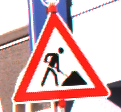
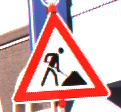

Ensure that your outputs match the examples below.
Sample Output#
Use the values in Table 15.6 below to test your program.
Case |
image_path |
convert |
|---|---|---|
1 |
ref_rgba.png |
no |
2 |
ref_gry.png |
|
3 |
ref_col.png |
yes |
Ensure your program’s output matches the provided samples exactly. This includes all characters, white space, and punctuation. In the samples, user input is highlighted like this for clarity, but your program should not highlight user input in this way.
Case 1 Sample Output
$ python3 py5_team_2_teamnumber.py Enter the path of the image you want to load: ref_rgba.png Would you like to convert to grayscale? no
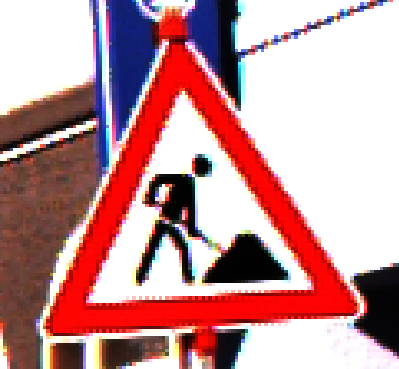
Fig. 15.5 Case_1_output_ref_rgba.png#
Case 2 Sample Output
$ python3 py5_team_2_teamnumber.py Enter the path of the image you want to load: ref_gry.png
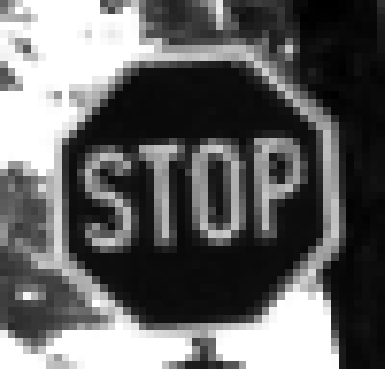
Fig. 15.6 Case_2_output_ref_gry.png#
Case 3 Sample Output
$ python3 py5_team_2_teamnumber.py Enter the path of the image you want to load: ref_col.png Would you like to convert to grayscale? yes
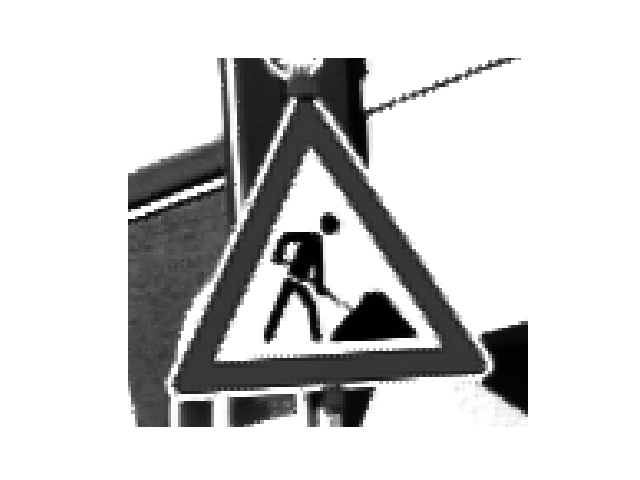
Fig. 15.7 Case_3_output_gray_ref_col.png#
Deliverables |
Description |
|---|---|
py5_team_2_teamnumber.pdf |
Flowchart(s) for this task. |
py5_team_2_teamnumber.py |
Your completed Python code. |