
Apr 28, 2026 | 732 words | 7 min read
9.2.1. Task 1#
Learning Objectives#
The purpose of this task is to set up a folder structure for the course, learn how to use the course technology including the homework submission software (Gradescope), and begin using the basic functions of MS Excel.
Part A: Set Up Course Folders#
Many of the assignments in this course will require you to upload documents to Gradescope. Since you will be creating many files, it is essential that you stay organized. Each team member will need to create a folder to keep all their documents used in the course. Follow the instructions below to set up folders for your assignments this semester.
Open the Windows Explorer (PC) or Finder (Mac).
Select Documents from the left-hand navigation bar.
Create a new folder titled
ENGR_133. All your course documents that are saved on your computer should be saved in this folder.Double-click on your
ENGR_133folder to open it. Then repeat the process to create a new folder titledExcel_1.Complete this part of this task by answering its associated question on Gradescope.
Note
To keep your documents organized, create folders for each new unit as the semester progresses.
Part B: Spreadsheet Collaboration#
With your folder structure in place, your team will create a shared spreadsheet to practice using MS Excel and collaborating online. One team member will set up a shared spreadsheet in OneDrive, and each team member will contribute information and help calculate team statistics.
Have one team member open a new MS Excel spreadsheet in OneDrive and share the link with the rest of the team. Save the spreadsheet as ex1_team_1_teamnumber.xlsx.
Note
Be sure to replace
teamnumberin the file name with your team’s number.Have each team member open the MS Excel spreadsheet on their own device. Make sure all team members can edit the MS Excel sheet and update it live with the following information:
Their name
Their Purdue email address
Their comfort level using MS Excel on a scale of 1-10, with 10 being the most comfortable.
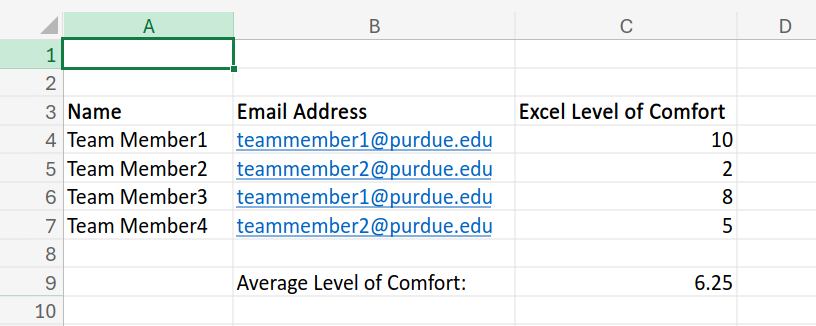
Fig. 9.2 Example layout of your MS Excel file.#
Have one team member use an MS Excel formula to calculate the mean (average) comfort level of the team in using MS Excel.
Hint
For more information on using
=AVERAGEin MS Excel, see the official documentation.
Part C: Producing PDFs#
Now that your team has completed the shared spreadsheet, you will save it to your personal device and create PDF copies showing both the values and formulas.
Each team member should save the MS Excel online spreadsheet created in Part B: Spreadsheet Collaboration to their device and open the file in the desktop version of MS Excel.
In MS Excel online, click This will save a copy of the file on your device.
Open the File Explorer (PC) or Finder (Mac) and find the document listed under your Downloads folder. Move the file to your
Excel_1folder created in Part A: Set Up Course Folders, then double-click the file to open it in MS Excel.
Save the spreadsheet as a PDF from the desktop version of MS Excel by selecting . In general, it is recommended that you print in landscape orientation and all active workbook pages. Before you print, adjust the scaling settings to fit all columns on a single page for technical presentation. Then save the PDF in your
Excel_1folder with the file name ex1_team_1_teamnumber_values.pdf.Before clicking Print, set the printer to Microsoft Print to PDF, and choose the scaling option labeled Fit All Columns on One Page.
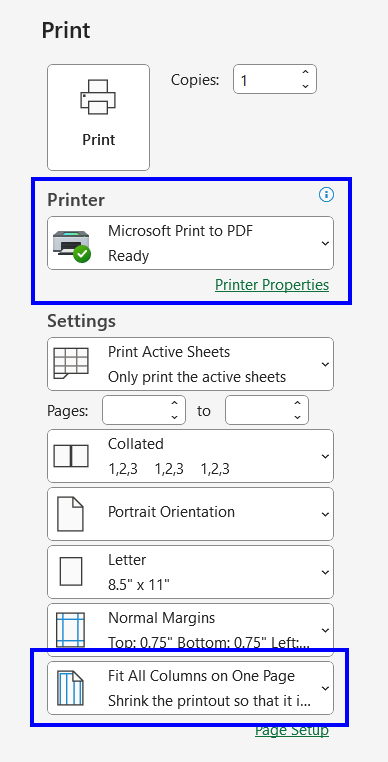
Fig. 9.3 PC print settings.#
In the Page Layout tab, set the width to 1 page and the height to Automatic. Then select Save as PDF… in the PDF dropdown. For help printing to one page on a Mac, see the official documentation.

Fig. 9.4 Mac print settings.#
Now save another PDF copy of the spreadsheet with the formulas showing. To do this, click on Then follow the steps above to print the spreadsheet with the formulas visible. Save the PDF in your
Excel_1folder created in Part A: Set Up Course Folders and name the file ex1_team_1_teamnumber_formulas.pdf.For more information on showing formulas in MS Excel, click here.
Note
MS Excel Online will allow you to show formulas in the spreadsheet but will not allow you to print a PDF with the formulas visible. Therefore, this step needs to be completed in the desktop version of MS Excel.
Deliverables#
Each team member is expected to contribute to every team task.
You and your team members will be held responsible for all material.
All collaborators should be clearly listed, and their contributions are properly referenced.
One team member should upload all deliverables to Gradescope as a single submission.
Be sure to assign all team members to the submission.
For help with submitting team assignments, see Adding Team Members in Gradescope.
Deliverables |
Description |
|---|---|
Gradescope |
Answer the associated question on Gradescope |
ex1_team_1_teamnumber.xlsx |
Your completed MS Excel document. |
ex1_team_1_teamnumber_values.pdf |
PDF of your MS Excel document with values showing. |
ex1_team_1_teamnumber_formulas.pdf |
PDF of your MS Excel document with formulas showing. |