Dec 04, 2025 | 555 words | 6 min read
11.2.2. Task 2#
Learning Objectives#
Clean images to prepare them for feature extraction and classification by resizing them to a consistent size.
Task Instructions#
Save the flowcharts for this task in tp1_team_2_teamnumber.pdf You will also need to include these flowcharts in your final report.
To prepare the images for analysis, they must all be a standard size. So, write Python code that resizes and pads any given image to a standard 100x100 pixel format. Name this program tp1_team_2_teamnumber.py.
Utilize the code you wrote in Task 1 to import and scale the pixel values to [0-255] before processing. Also, review Section 10.1.1 for documentation on using the PIL library and its functions.
Write a
clean_imagefunction that has one argument: A NumPy array representing an image (the output from yourload_imgfunction). The function must return the cleaned image as a NumPy array. Your main method should callload_imgandclean_imagewith the outputs matching the examples below.Note
The
clean_imagefunction that you write, must be able to handle RGB and grayscale image arrays as inputs. This is shown in the examples below.The
clean_imagefunction must first resize the image to fit within a 100x100 canvas while maintaining its original aspect ratio to prevent distortion. Use the Pillow library’sresize()method with bilinear interpolation for this (see the docs).
When writing your code, consider the following three scenarios:
If the original image was wider than it was tall (landscape orientation), the resized image will have a new width of 100 pixels and a new height of \(\frac{100}{\text{Aspect Ratio}}\).
Conversely, if the original image was taller than it was wide (portrait orientation), the resized image will have a new height of 100 pixels and a new width of \({100} \times {\text{Aspect Ratio}}\).
If the original image was square, the resized image will be exactly 100x100 pixels.
Note
When calculating the new dimensions, round down to the nearest integer to avoid errors during resizing. We cannot have a fraction of a pixel.
After resizing, the image will likely not be exactly 100x100 unless it was a square image to begin with. So, pad the image to reach the target dimensions. The padded area should be black. For this, you can use the
ImageOps.pad()function (see the docs).Display the cleaned image to the user and print the original, resized, and final image size.
Note
The padded area (the “letterbox” bars) should be filled black. For color images, use the RGB value (0, 0, 0). For grayscale images, use the value 0.
Additionally, for the method argument in the
ImageOps.pad()function, use bilinear interpolation.
Hint
You will need to convert the input NumPy array image to a Pillow Image object and back to perform some steps. Review the following link:
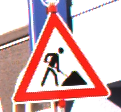
Organize your code to use functions that break up the task into manageable pieces. Use the files provided in the Table 11.6 to test your code.
Image File Name |
Description |
|---|---|
A raw color image to be resized |
|
A raw color image to be resized |
|
A raw color image to be resized |
|
A raw grascale image to be resized |


Sample Output#
Use the values in Table 11.7 below to test your program.
Case |
image_path |
|---|---|
1 |
ref_col_raw0.png |
2 |
ref_col_raw1.png |
3 |
ref_col_raw2.png |
4 |
ref_gry_raw.png |
Ensure your program’s output matches the provided samples exactly. This includes all characters, white space, and punctuation. In the samples, user input is highlighted like this for clarity, but your program should not highlight user input in this way.
Case 1 Sample Output
$ python3 tp1_team_2_teamnumber.py Enter the path of the image you want to clean: ref_col_raw0.png Image shape before cleaning: (112, 121, 3) Resized image to: (92, 100) Image shape after cleaning: (100, 100, 3)
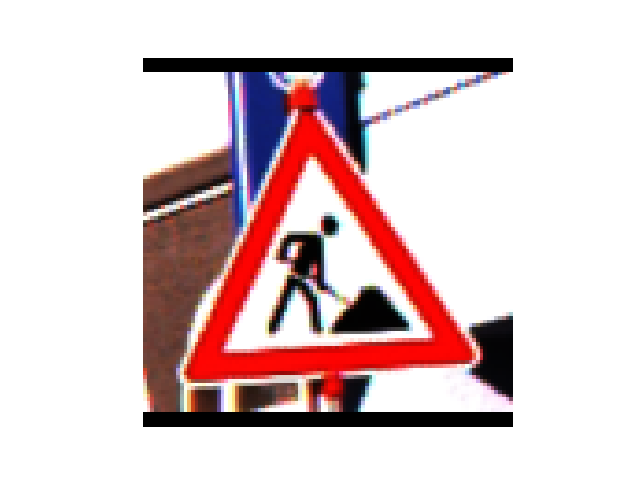
Fig. 11.4 Case_1_output_ref_col_raw0.png#
Case 2 Sample Output
$ python3 tp1_team_2_teamnumber.py Enter the path of the image you want to clean: ref_col_raw1.png Image shape before cleaning: (60, 59, 3) Resized image to: (100, 98) Image shape after cleaning: (100, 100, 3)
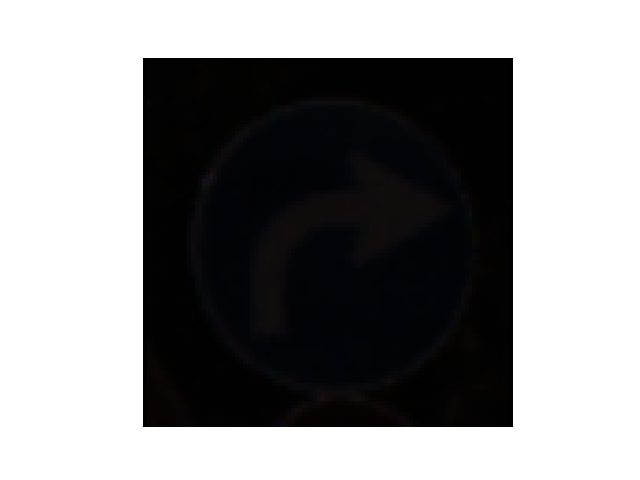
Fig. 11.5 Case_2_output_ref_col_raw1.png#
Case 3 Sample Output
$ python3 tp1_team_2_teamnumber.py Enter the path of the image you want to clean: ref_col_raw2.png Image shape before cleaning: (53, 52, 3) Resized image to: (100, 98) Image shape after cleaning: (100, 100, 3)
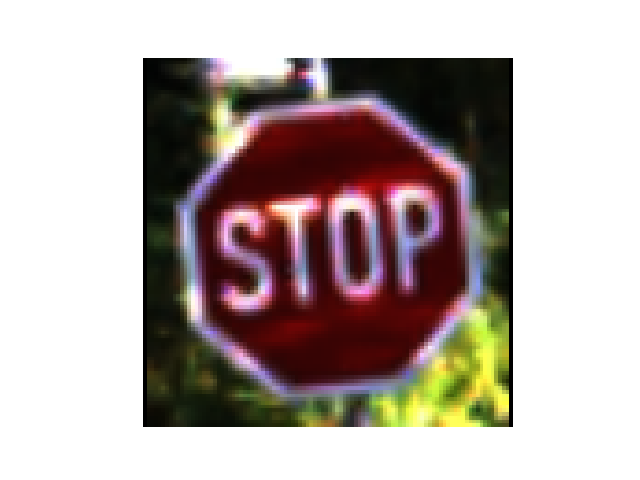
Fig. 11.6 Case_3_output_ref_col_raw2.png#
Case 4 Sample Output
$ python3 tp1_team_2_teamnumber.py Enter the path of the image you want to clean: ref_gry_raw.png Image shape before cleaning: (48, 50) Resized image to: (96, 100) Image shape after cleaning: (100, 100)
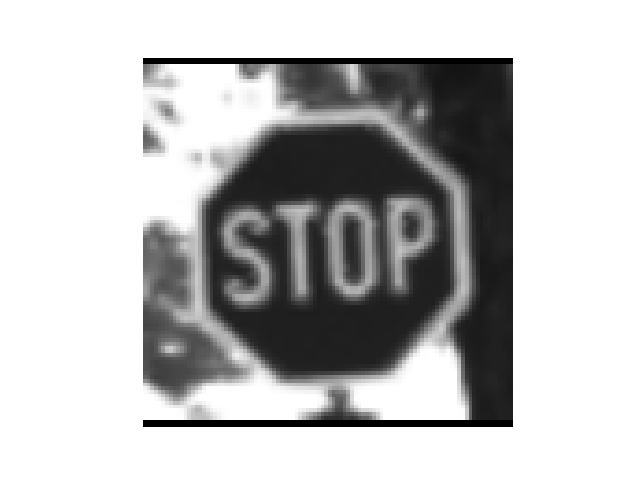
Fig. 11.7 Case_4_output_ref_gry_raw.png#
Deliverables |
Description |
|---|---|
tp1_team_2_teamnumber.pdf |
Flowchart(s) for this task. |
tp1_team_2_teamnumber.py |
Your completed Python code. |