
Apr 28, 2026 | 751 words | 8 min read
6.2.3. Task 3#
Learning Objectives#
Use
pandasto work with tabular CSV dataUse the
pandaslibrary to read data, apply functions, and build a scaled final feature datasetVisualize the relationship between features using a scatter plot, with points colored by class label
Understand the purpose of feature scaling and how to apply it to a dataset
Introduction#
In this task, you will use the features extracted in the previous task. Your script will read the CSV features file, apply feature scaling, and plot the relationship between features.
This task will require you to use the pandas library, which is a powerful tool
for data manipulation and analysis in Python. If you are unfamiliar with
pandas, refer to the materials provided in
Section 6.1.1.
Feature scaling standardizes each numeric feature by subtracting its mean and dividing by its standard deviation. You may notice that scatter plots of scaled features look similar to those of the original features, but the axes will differ: the scaled axes will be centered at 0 with a standard deviation of 1, while the original axes may span a wider range. Feature scaling does not change the relationship between features; it only changes their scale. Ensuring all features are on a similar scale can help certain machine learning algorithms perform better.
Task Instructions#
Deliverable Reminder
Create a flowchart of your algorithm and save it as tp2_team_3_teamnumber.pdf. Include all flowcharts in your final report.
Feature Scaling Function#
Create a function named scale_features:
Arguments:
A
pandasDataFrameA list of feature column names (as strings) to be scaled
Returns:
None(the function modifies the DataFrame in place)
For each column in the list of feature column names, calculate the mean and standard deviation of that column. Then, scale the value in every row of that column using the formula:
Where:
\(x\) is the original feature value
\(\mu\) is the mean of the entire feature column
\(\sigma\) is the standard deviation of the entire feature column
Your function should NOT return anything. Instead, it should modify the input DataFrame in place. After calling the function, the original DataFrame will have its specified feature columns scaled without creating a new DataFrame object, thus saving memory.
Main Function#
The
mainfunction should first collect the following inputs from the user:the path to the image features CSV file (the output from Task 2)
whether to apply feature scaling (yes/no)
The function should load the features CSV file into a
pandasDataFrame usingpd.read_csv().If the user chose to apply feature scaling, call the
scale_featuresfunction on the DataFrame with the appropriate feature column names.You can hardcode the list of feature column names in your code since you know which features you extracted in Task 2.
If the user chose not to apply feature scaling, simply proceed with the original DataFrame without modification.
Add print statements to indicate whether feature scaling is being applied or not, and to confirm when the scaling process is complete.
Display the size and head of the dataset to show the result with or without scaling.
Prompt the user for two or three feature names which will be used for plotting. See the sample output below for an example of how to do this.
If no z-axis feature is provided, only plot the two features in a 2D scatter plot.
If a z-axis feature is provided, create a 3D scatter plot. See the docs for
matplotlibto learn how to create 3D scatter plots.
Create the feature scatter plot. Separate the dataset into two groups based on the
ClassIdcolumn. Then callplt.scatteronce for each group, using thecparameter to assign explicit string colors:c='red'for deer warning signs (ClassId 0) andc='blue'for left turn ahead signs (ClassId 1). Setalpha=0.6to make the points semi-transparent. Assign a descriptivelabelto each call so that a legend can be generated withplt.legend(). Label the axes appropriately.
Hint
You may need to use matplotlib.use('TkAgg') at the beginning of your script
to ensure that the plots display correctly on all platforms.
Save the scatter plot image to
"KNN_feature_space.png"usingplt.savefig. Print a message confirming the filename where the plot was saved.
Save your program as tp2_team_3_teamnumber.py.
Sample Output#
Use the values in Table 6.9 below to test your program.
Case |
features_csv_path |
apply_scaling |
xfeature |
yfeature |
zfeature |
|---|---|---|---|---|---|
1 |
img_features.csv |
No |
hue_mean |
saturation_mean |
|
2 |
img_features.csv |
No |
hue_mean |
saturation_mean |
value_mean |
3 |
img_features.csv |
Yes |
hue_mean |
saturation_mean |
value_mean |
4 |
img_features.csv |
No |
hue_mean |
has_triangle |
has_circle |
5 |
img_features.csv |
Yes |
hue_mean |
has_triangle |
has_circle |
6 |
img_features.csv |
No |
hue_std |
number_lines |
|
7 |
img_features.csv |
Yes |
hue_std |
number_lines |
Ensure your program’s output matches the provided samples exactly. This includes all characters, white space, and punctuation. In the samples, user input is highlighted like this for clarity, but your program should not highlight user input in this way.
Case 1 Sample Output
$ python3 tp2_team_3_teamnumber.py Enter the name of CSV image features file: img_features.csv Do you want to apply feature scaling? (yes/no): No Proceeding without feature scaling.
Feature Dataset Shape: (1080, 11)
Feature Dataset Head: hue_mean hue_std saturation_mean saturation_std value_mean value_std number_lines has_circle has_triangle Path ClassId 0 153.2073 61.059767 91.9556 40.786746 17.8427 19.008287 2.0 0.0 0.0 0001.png 0 1 81.7387 87.964121 151.8222 55.362343 126.3639 91.494998 49.0 1.0 0.0 0002.png 1 2 153.4376 57.676740 95.8184 38.068961 21.2990 22.463993 1.0 0.0 0.0 0003.png 0 3 82.5612 83.471986 147.9150 63.461210 127.8036 90.167103 42.0 1.0 0.0 0004.png 1 4 154.4448 57.903069 95.9104 40.238663 24.2915 24.985162 1.0 0.0 0.0 0005.png 0
Enter the column to use as the x-axis feature: hue_mean
Enter the column to use as the y-axis feature: saturation_mean
Enter the column to use as the z-axis feature (or press Enter to skip):
Scatter plot saved to KNN_feature_space.png
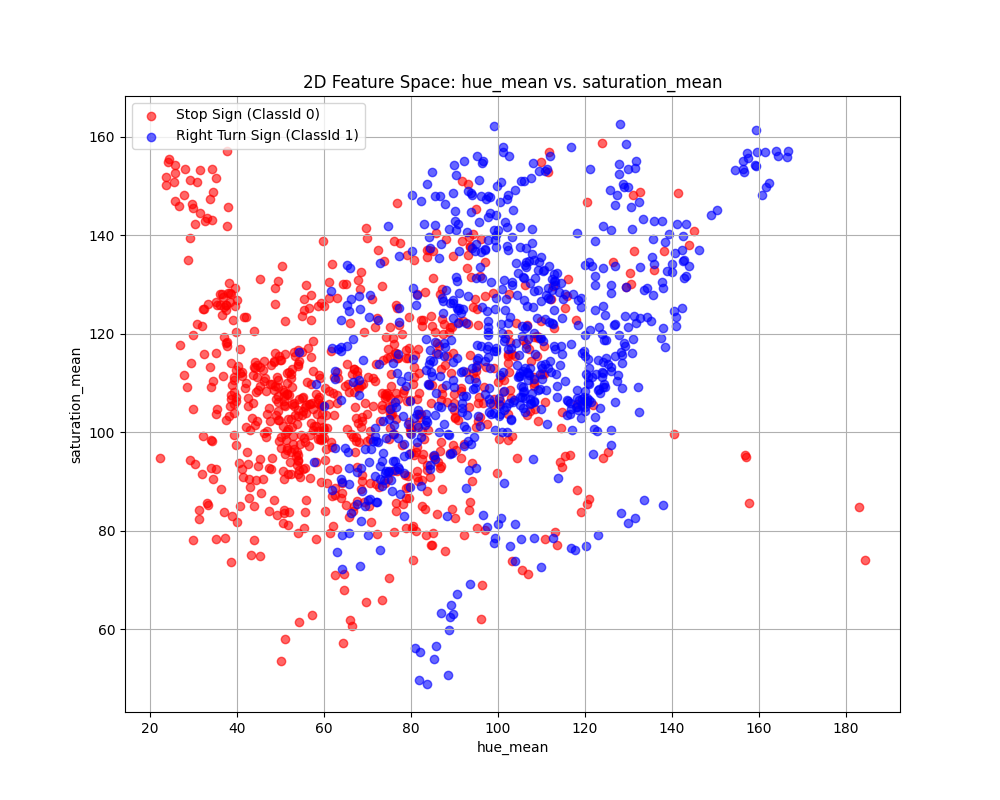
Fig. 6.11 Case_1_KNN_feature_space.png#
Case 2 Sample Output
$ python3 tp2_team_3_teamnumber.py Enter the name of CSV image features file: img_features.csv Do you want to apply feature scaling? (yes/no): No Proceeding without feature scaling.
Feature Dataset Shape: (1080, 11)
Feature Dataset Head: hue_mean hue_std saturation_mean saturation_std value_mean value_std number_lines has_circle has_triangle Path ClassId 0 153.2073 61.059767 91.9556 40.786746 17.8427 19.008287 2.0 0.0 0.0 0001.png 0 1 81.7387 87.964121 151.8222 55.362343 126.3639 91.494998 49.0 1.0 0.0 0002.png 1 2 153.4376 57.676740 95.8184 38.068961 21.2990 22.463993 1.0 0.0 0.0 0003.png 0 3 82.5612 83.471986 147.9150 63.461210 127.8036 90.167103 42.0 1.0 0.0 0004.png 1 4 154.4448 57.903069 95.9104 40.238663 24.2915 24.985162 1.0 0.0 0.0 0005.png 0
Enter the column to use as the x-axis feature: hue_mean
Enter the column to use as the y-axis feature: saturation_mean
Enter the column to use as the z-axis feature (or press Enter to skip): value_mean
Scatter plot saved to KNN_feature_space.png
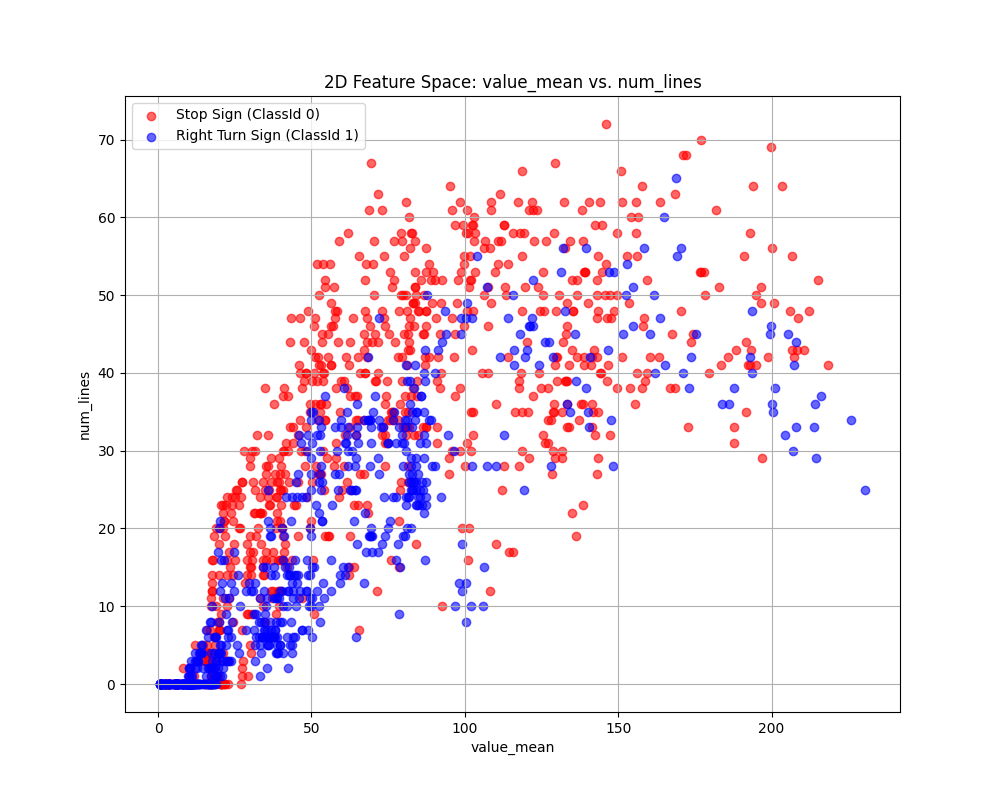
Fig. 6.12 Case_2_KNN_feature_space.png#
Case 3 Sample Output
$ python3 tp2_team_3_teamnumber.py Enter the name of CSV image features file: img_features.csv Do you want to apply feature scaling? (yes/no): Yes Applying feature scaling to the dataset... Feature scaling applied successfully.
Feature Dataset Shape: (1080, 11)
Feature Dataset Head: hue_mean hue_std saturation_mean saturation_std value_mean value_std number_lines has_circle has_triangle Path ClassId 0 1.354593 -0.188960 -0.428141 -1.575216 -0.757578 -0.714781 -0.875255 -0.766610 -0.36651 0001.png 0 1 -0.356171 1.150234 1.199187 -0.755132 0.887890 1.359262 1.891979 1.303237 -0.36651 0002.png 1 2 1.360106 -0.357353 -0.323140 -1.728130 -0.705171 -0.615903 -0.934132 -0.766610 -0.36651 0003.png 0 3 -0.336483 0.926633 1.092979 -0.299456 0.909719 1.321268 1.479838 1.303237 -0.36651 0004.png 1 4 1.384215 -0.346088 -0.320639 -1.606054 -0.659797 -0.543766 -0.934132 -0.766610 -0.36651 0005.png 0
Enter the column to use as the x-axis feature: hue_mean
Enter the column to use as the y-axis feature: saturation_mean
Enter the column to use as the z-axis feature (or press Enter to skip): value_mean
Scatter plot saved to KNN_feature_space.png
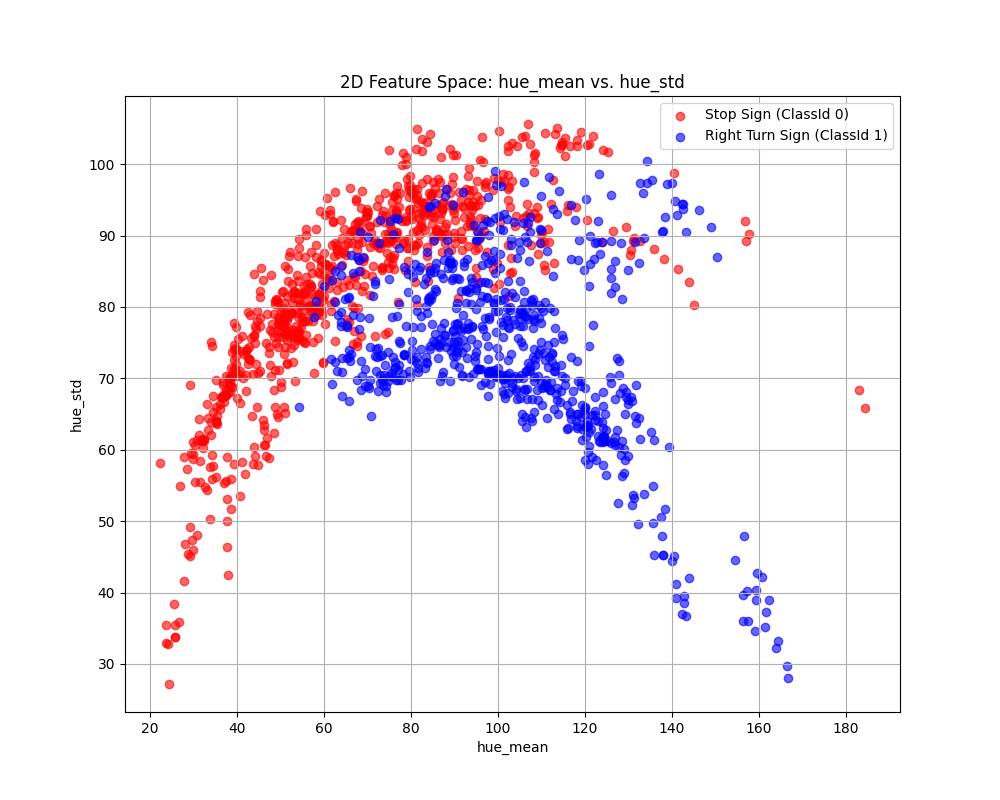
Fig. 6.13 Case_3_KNN_feature_space.png#
Case 4 Sample Output
$ python3 tp2_team_3_teamnumber.py Enter the name of CSV image features file: img_features.csv Do you want to apply feature scaling? (yes/no): No Proceeding without feature scaling.
Feature Dataset Shape: (1080, 11)
Feature Dataset Head: hue_mean hue_std saturation_mean saturation_std value_mean value_std number_lines has_circle has_triangle Path ClassId 0 153.2073 61.059767 91.9556 40.786746 17.8427 19.008287 2.0 0.0 0.0 0001.png 0 1 81.7387 87.964121 151.8222 55.362343 126.3639 91.494998 49.0 1.0 0.0 0002.png 1 2 153.4376 57.676740 95.8184 38.068961 21.2990 22.463993 1.0 0.0 0.0 0003.png 0 3 82.5612 83.471986 147.9150 63.461210 127.8036 90.167103 42.0 1.0 0.0 0004.png 1 4 154.4448 57.903069 95.9104 40.238663 24.2915 24.985162 1.0 0.0 0.0 0005.png 0
Enter the column to use as the x-axis feature: hue_mean
Enter the column to use as the y-axis feature: has_triangle
Enter the column to use as the z-axis feature (or press Enter to skip): has_circle
Scatter plot saved to KNN_feature_space.png
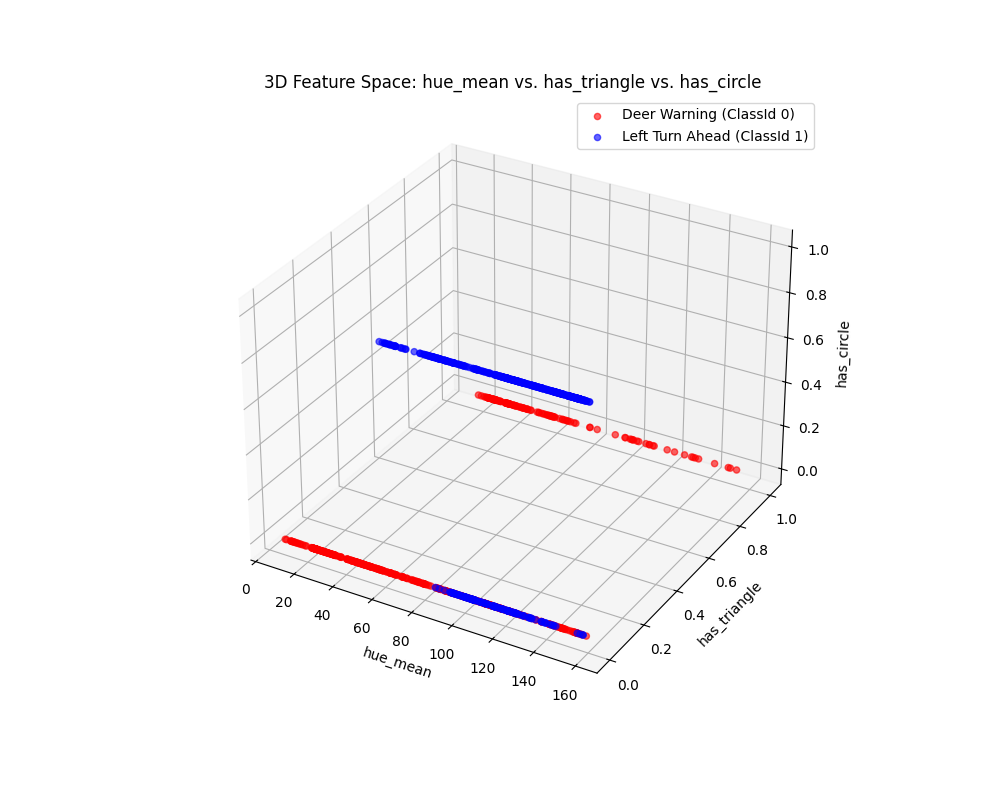
Fig. 6.14 Case_4_KNN_feature_space.png#
Case 5 Sample Output
$ python3 tp2_team_3_teamnumber.py Enter the name of CSV image features file: img_features.csv Do you want to apply feature scaling? (yes/no): Yes Applying feature scaling to the dataset... Feature scaling applied successfully.
Feature Dataset Shape: (1080, 11)
Feature Dataset Head: hue_mean hue_std saturation_mean saturation_std value_mean value_std number_lines has_circle has_triangle Path ClassId 0 1.354593 -0.188960 -0.428141 -1.575216 -0.757578 -0.714781 -0.875255 -0.766610 -0.36651 0001.png 0 1 -0.356171 1.150234 1.199187 -0.755132 0.887890 1.359262 1.891979 1.303237 -0.36651 0002.png 1 2 1.360106 -0.357353 -0.323140 -1.728130 -0.705171 -0.615903 -0.934132 -0.766610 -0.36651 0003.png 0 3 -0.336483 0.926633 1.092979 -0.299456 0.909719 1.321268 1.479838 1.303237 -0.36651 0004.png 1 4 1.384215 -0.346088 -0.320639 -1.606054 -0.659797 -0.543766 -0.934132 -0.766610 -0.36651 0005.png 0
Enter the column to use as the x-axis feature: hue_mean
Enter the column to use as the y-axis feature: has_triangle
Enter the column to use as the z-axis feature (or press Enter to skip): has_circle
Scatter plot saved to KNN_feature_space.png
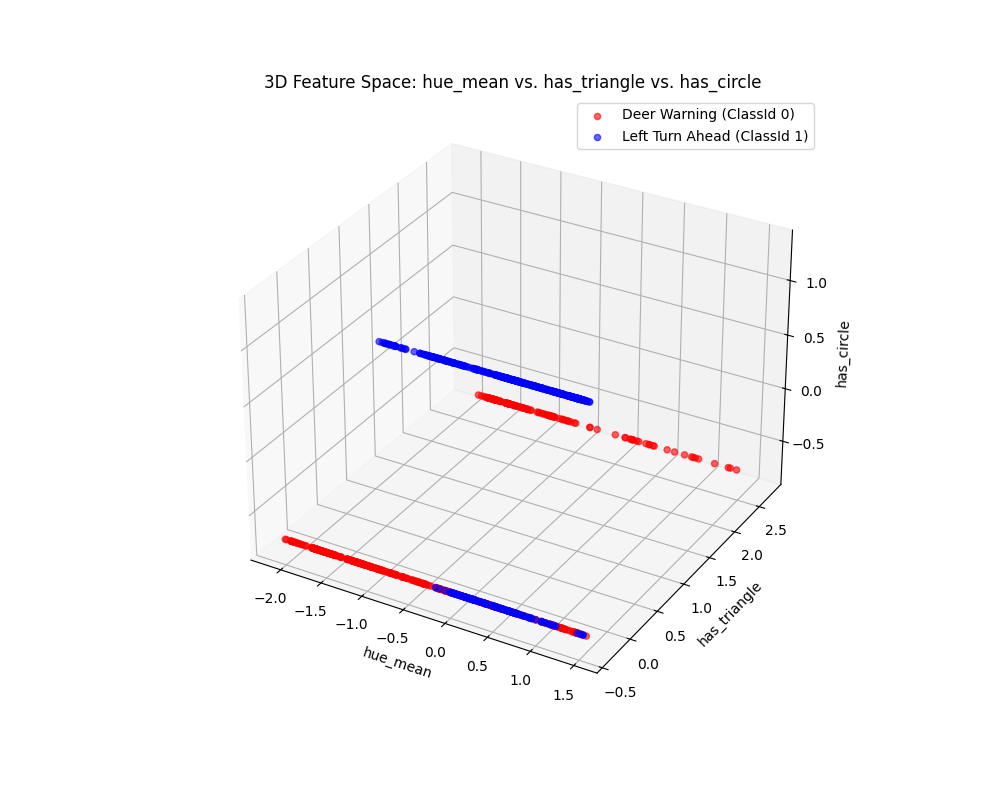
Fig. 6.15 Case_5_KNN_feature_space.png#
Case 6 Sample Output
$ python3 tp2_team_3_teamnumber.py Enter the name of CSV image features file: img_features.csv Do you want to apply feature scaling? (yes/no): No Proceeding without feature scaling.
Feature Dataset Shape: (1080, 11)
Feature Dataset Head: hue_mean hue_std saturation_mean saturation_std value_mean value_std number_lines has_circle has_triangle Path ClassId 0 153.2073 61.059767 91.9556 40.786746 17.8427 19.008287 2.0 0.0 0.0 0001.png 0 1 81.7387 87.964121 151.8222 55.362343 126.3639 91.494998 49.0 1.0 0.0 0002.png 1 2 153.4376 57.676740 95.8184 38.068961 21.2990 22.463993 1.0 0.0 0.0 0003.png 0 3 82.5612 83.471986 147.9150 63.461210 127.8036 90.167103 42.0 1.0 0.0 0004.png 1 4 154.4448 57.903069 95.9104 40.238663 24.2915 24.985162 1.0 0.0 0.0 0005.png 0
Enter the column to use as the x-axis feature: hue_std
Enter the column to use as the y-axis feature: number_lines
Enter the column to use as the z-axis feature (or press Enter to skip):
Scatter plot saved to KNN_feature_space.png
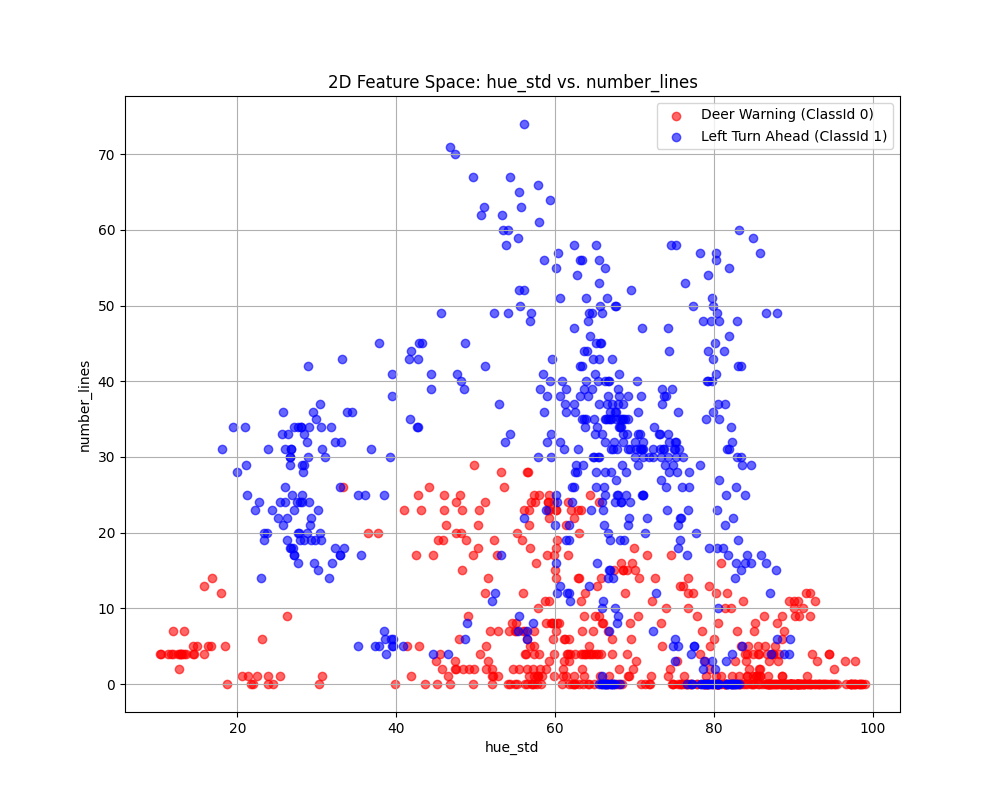
Fig. 6.16 Case_6_KNN_feature_space.png#
Case 7 Sample Output
$ python3 tp2_team_3_teamnumber.py Enter the name of CSV image features file: img_features.csv Do you want to apply feature scaling? (yes/no): Yes Applying feature scaling to the dataset... Feature scaling applied successfully.
Feature Dataset Shape: (1080, 11)
Feature Dataset Head: hue_mean hue_std saturation_mean saturation_std value_mean value_std number_lines has_circle has_triangle Path ClassId 0 1.354593 -0.188960 -0.428141 -1.575216 -0.757578 -0.714781 -0.875255 -0.766610 -0.36651 0001.png 0 1 -0.356171 1.150234 1.199187 -0.755132 0.887890 1.359262 1.891979 1.303237 -0.36651 0002.png 1 2 1.360106 -0.357353 -0.323140 -1.728130 -0.705171 -0.615903 -0.934132 -0.766610 -0.36651 0003.png 0 3 -0.336483 0.926633 1.092979 -0.299456 0.909719 1.321268 1.479838 1.303237 -0.36651 0004.png 1 4 1.384215 -0.346088 -0.320639 -1.606054 -0.659797 -0.543766 -0.934132 -0.766610 -0.36651 0005.png 0
Enter the column to use as the x-axis feature: hue_std
Enter the column to use as the y-axis feature: number_lines
Enter the column to use as the z-axis feature (or press Enter to skip):
Scatter plot saved to KNN_feature_space.png
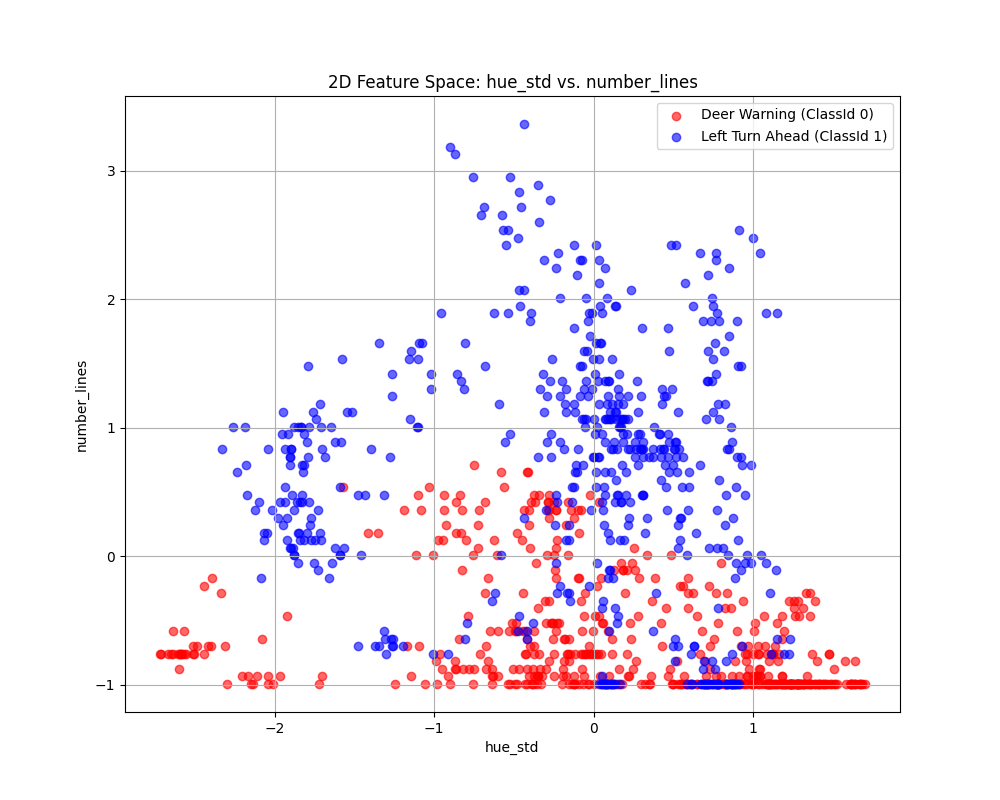
Fig. 6.17 Case_7_KNN_feature_space.png#
Deliverables |
Description |
|---|---|
tp2_team_3_teamnumber.pdf |
Flowchart(s) for this task. |
tp2_team_3_teamnumber.py |
Your completed Python code. |