
Apr 28, 2026 | 574 words | 6 min read
15.1.2. Task 0#
Learning Objectives#
Utilize file I/O functions in Python to handle image data using modern Python libraries.
Analyze image properties such as color composition using manual looping methods.
Develop an understanding of Python libraries for image processing.
Display analysis results.
Introduction#
Most digital images store color using non-linear values called \(R'G'B'\) (sRGB). In an 8-bit image, each channel (\(R\), \(G\), \(B\)) is stored as an integer from \(0\) to \(255\). These values are gamma-encoded, which makes them efficient for display and storage but unsuitable for precise calculations such as computing brightness or comparing colors. In order to process the image, the image must first be normalized so that all values in the image are floating-point numbers between \(0.0\) and \(1.0\). Then by linearizing the normalized values, the gamma encoding is removed and accurate image manipulation and analysis can be done.
Task Instructions#
Develop a Python program that computes the average intensity of each channel in an image, and writes the results to a file.
Before creating the program, create a flowchart of the algorithm you will use and save
it as py5_pre_0_username.pdf. Then
start your program from a copy of the
ENGR133_Python_Template.py
Python template. Your program should be named
py5_pre_0_username.py. Your program
should do the following:
Load the user specified image.
Convert the image to a NumPy array.
Normalize the pixel values in the NumPy array to the range \(0.0\)–\(1.0\).
Linearize the pixels in the NumPy array.
Display the mean of the color channels.
Images |
Download Link |
|---|---|
RGB image |
|
Grayscale image |
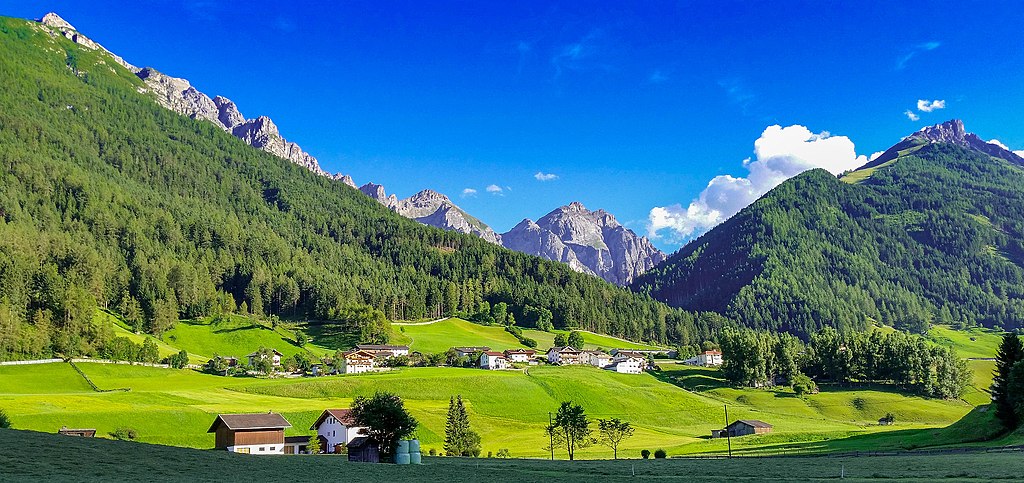
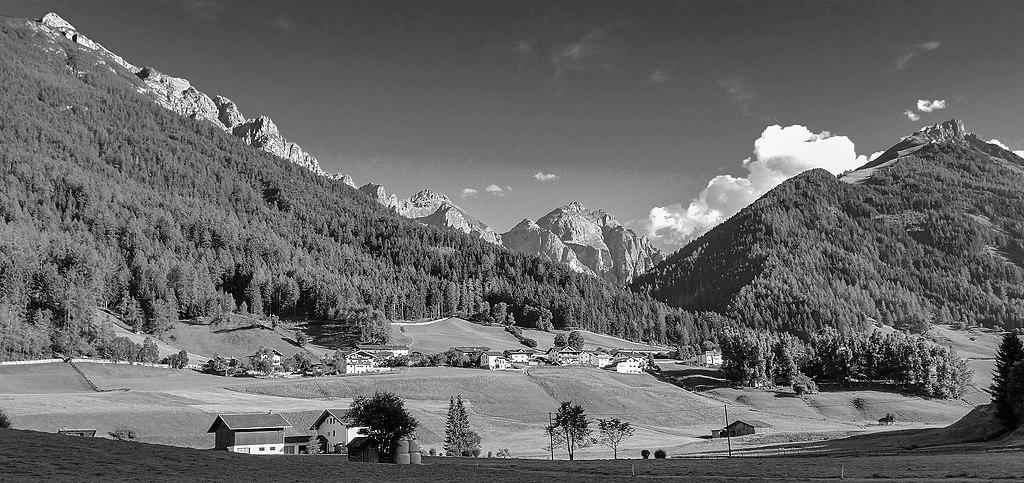
Note
Reference Section 13.1.1 for help with NumPy and
Section 15.1.1 for help with PIL.
Normalize Image Function#
Create a function named normalize_image that takes in an np.array
that represents the image and returns the array after being normalized.
Normalize the pixel values in the array by dividing each value by \(255.0\). This is necessary for the subsequent linearization calculations.
Linearize Image Function#
Create a function named linearize_image that takes in a normalized
np.array and returns the array after being linearized.
This is done using the transfer function shown in (15.1), where \(C'\) is the channel value before the transformation and \(C\) is the new channel value. This transfer function needs to be applied to each channel (\(R\), \(G\), and \(B\)) of every pixel in the array. The function applies one formula for darker values and another for brighter ones. For more background, see the sRGB article on Wikipedia.
Mean Channel Function#
Create a function named mean_channel that takes in the linearized
np.array and a channel index. The function will return the mean of specified
color channel of the linearized array.
If the linearized array is grayscale, the mean of should be reported as zero. If
img_array is the name of your linearized np.array then:
The red channel can be accessed using
img_array[:, :, 0]The green channel can be accessed using
img_array[:, :, 1]The blue channel can be accessed using
img_array[:, :, 2]
Main Function#
In your main function you will need to do the following:
Prompt the user for the name of image file and load the image using
PIL.image.open.Convert the image to a NumPy array.
Normalize the image array using the
normalize_imagefunction.Linearize the normalized image array using the
linearize_imagefunction.Calculate the mean for each channel (\(R\), \(G\), and \(B\)).
Display the channel analysis.
Sample Output#
Test cases for the image processing Use the values in Table 15.2 below to test your program.
Case |
image filename |
|---|---|
1 |
color_image.jpeg |
2 |
grayscale_image.jpeg |
Ensure your program’s output matches the provided samples exactly. This includes all characters, white space, and punctuation. In the samples, user input is highlighted like this for clarity, but your program should not highlight user input in this way.
Case 1 Sample Output
$ python3 py5_pre_0_username.py Enter the filename of the image: color_image.jpeg Image: color_image.jpeg Red Channel Mean: 0.13 Green Channel Mean: 0.22 Blue Channel Mean: 0.33
Case 2 Sample Output
$ python3 py5_pre_0_username.py Enter the filename of the image: grayscale_image.jpeg Image: grayscale_image.jpeg Red Channel Mean: 0.00 Green Channel Mean: 0.00 Blue Channel Mean: 0.00
Deliverables |
Description |
|---|---|
py5_pre_0_username.pdf |
Flowchart(s) for this task. |
py5_pre_0_username.py |
Your completed Python code. |